Adding an admin to your Facebook Page lets you delegate tasks to your team or a marketing agency, ensuring faster responses to customer messages. This quick engagement is crucial for converting inquiries into calls, bookings, and sales for your local business. This guide will walk you through the process, provide ready-to-use templates, and show you how to measure your success.
Key Facts About Facebook Page Access
- Boosts Conversions: When you answer messages and comments faster, you directly generate more calls, bookings, and inquiries.
- Improves Team Efficiency: Letting your marketing experts or office staff handle the digital side frees you up to focus on running your business.
- Strengthens Security: Assign specific roles (like Content Creator or Moderator) so team members only get the access they need, without giving away full control.
- Invitation Expiration: Admin invitations expire in 30 days if not accepted.
- Personal Profile Required: Anyone you add must have their own personal Facebook profile to accept a Page role.
How to Add an Admin on Desktop and Mobile
Need to give a team member access to your Facebook Page? It’s a task you can knock out in less than two minutes, whether you’re on your computer or your phone. This is a must-know skill for busy operators, like someone running a multi-location med spa in [City] or a dental practice with several offices in the [Neighborhood] area. Getting your team the right access means they can jump on customer messages, post updates, and manage ads without waiting on you.
The whole process boils down to getting into your Page's settings, finding the "Page Access" section, and sending an invitation.
Let’s walk through the exact clicks you’ll need to make on both desktop and mobile.
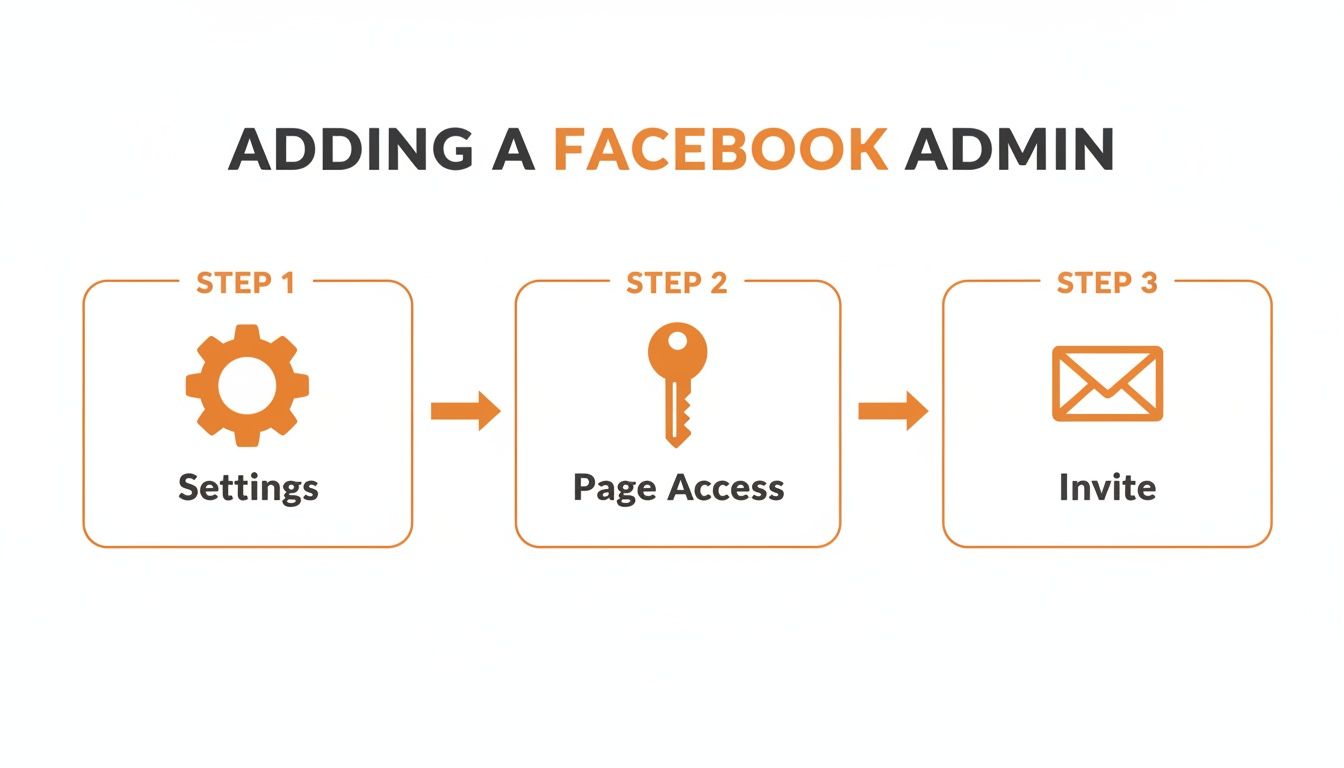
As you can see, the core steps are pretty much the same on any device. Once you've done it a couple of times, it becomes second nature.
Adding Page Access on Your Computer
Working from a desktop or laptop gives you more screen real estate, which definitely helps when you’re juggling multiple pages or sorting through different permission levels. You'll do this through the main Facebook interface.
- Switch to Your Page: From your personal feed, click your profile picture in the top-right corner, hit "See all profiles," and select the business Page you need to update.
- Navigate to Settings: Click your Page's profile picture again in the top right. A menu will drop down—choose "Settings & Privacy," then click "Settings."
- Open Page Access: On the settings screen, look for "New Pages Experience" in the left-hand menu and select "Page Access." This is your control center for who can do what.
- Invite the New Admin: You'll see two categories: "People with Facebook access" for full control and "People with task access" for specific duties. Click the "Add New" button next to the one you need.
- Send the Invitation: A search box will pop up, letting you find the person by their name or the email they use for Facebook. Once you’ve found and selected them, you can fine-tune their permissions. Hit "Give Access," pop in your password to confirm, and the invitation is officially on its way.
A Quick Tip from Experience: When you're adding an outside agency or a new manager, always double-check and use the exact email address tied to their Facebook account. It's a simple step that prevents the common headache of sending an invite to the wrong Jane Doe.
Adding Page Access on Your Phone
If you're managing social media on the move, you can add an admin just as easily from the Facebook app. The steps are almost a mirror image of the desktop process.
- Switch Over to Your Page: Open the app and tap the menu icon (your profile pic) in the bottom-right corner. Tap the little arrow next to your name to see all your profiles, then select the correct business Page.
- Get to Your Page Settings: Tap that menu icon again. Go to "Settings & Privacy," and then tap "Settings."
- Find the Page Access Menu: Scroll down and tap "Page Settings," then find "Page Access" under the "New Pages Experience" section.
- Invite Your New Admin: Tap "Add New," search for the person you want to add, and set their permissions. You'll need to enter your password to seal the deal and send the invitation.
By the way, if a new team member needs a direct link to the Page, you can find it easily. We have a simple guide on how to find my Facebook Page URL that shows you exactly where to look.
Ready-to-Use Templates for Your Business
Okay, so you’ve got your team set up on Facebook. That’s the first hurdle. Now, what do you have them do? To really make an impact, your team needs the right tools to talk to customers. That's where these ready-to-use templates come in. These scripts are designed for busy local businesses, whether you're running a bustling vet clinic or a home services crew.
Scripts to Request Customer Reviews
Getting a steady flow of new reviews is a huge signal to Google that your business is active, trusted, and worth showing to more people "near me". Here are a couple of simple, effective ways to ask.
SMS Review Request Template (For a Vet Clinic)
Hi [Pet Owner Name]! This is [Your Name] from [Clinic Name]. Thanks for trusting us with [Pet's Name] today. Would you mind sharing your experience on Google? Your feedback helps other pet parents in [City] find us! [Link to Google Review Page]
Email Review Request Template (For a Senior Living Community)
Subject: How was your recent tour at [Community Name]?
Hi [Family Member Name],
We hope you had a wonderful and informative tour at [Community Name] today. We're always working to provide a welcoming and supportive environment, and your feedback is a huge part of that.
If you have a moment, we would really appreciate you leaving us a review on our Google Business Profile. It helps other families in the community find us!
[Link to Google Review Page]
Thanks for your time and for considering us.
Sincerely,
The Team at [Community Name]
Templates for Responding to Reviews
You absolutely have to respond to all your reviews—the good and the bad. It shows potential customers that you're paying attention. Aim for a response time of under 24 hours.
Positive Review Response Template
Hi [Customer Name], thank you so much for the kind words! We’re thrilled to hear you had a great experience with [Mention Specifics from Review, e.g., 'your technician, Mike']. We appreciate you choosing us and look forward to helping you again soon.
Negative Review Response Template
Hi [Customer Name], thank you for bringing this to our attention. We are very sorry to hear that your experience did not meet expectations. Providing excellent service is our top priority, and we would like the opportunity to make things right. Please call me directly at [Phone Number] at your earliest convenience. – [Your Name], Manager
7-Day Launch Checklist for Your Review Program
Ready to put this into action? Here’s a simple week-long plan to get a review program off the ground.
- Day 1: Finalize your review request templates (both SMS & Email).
- Day 2: Train your front-line staff on when and how to ask for reviews.
- Day 3: Set up a central dashboard to monitor all your review sites.
- Day 4: Respond to all existing reviews from the last 90 days.
- Day 5: Send your first batch of review requests to 5-10 recent, happy customers.
- Day 6: Monitor incoming reviews and respond within 24 hours.
- Day 7: Review your first week's results and tweak your process.
Putting these simple tools into practice is the foundation of solid reputation management. On a related note, if you need help verifying team members on Facebook, you might find our guide on how to get a Facebook profile link useful.
How to Measure Your Admin's Impact
So, you’ve handed over the keys to a new admin. How can you be sure their work is actually paying off? The goal is to connect their activity to tangible business outcomes—more phone calls, more bookings, and a healthier bottom line for your auto shop in [City] or med spa in [Neighborhood].

Key Performance Indicators (KPIs) to Track
Give your team clear, measurable targets to hit. Here’s what I recommend:
- Response Time: Answer all messages and comments within 1-2 hours.
- Review Volume: Aim for 5-10 new Google reviews each month per location.
- Star Rating: Maintain an average rating of 4.5 stars or higher.
- GBP Views/Calls: Track the monthly increase in profile views and calls from your Google Business Profile.
- Lead-to-Sale Conversion Rate: Target a 25% or higher conversion rate from tracked social media leads.
Proving Facebook Drives Bookings and Calls
The most effective way to track real conversions is to follow the user's journey with Urchin Tracking Module (UTM) tags. UTMs are small bits of code you add to a URL that tell your analytics software exactly where website visitors came from.
For example, when you post your booking link, tag it like this: ?utm_source=facebook&utm_medium=social&utm_campaign=spring_promo. Now you can log into Google Analytics and see exactly how many bookings came from that specific post. This allows you to draw a straight line from Facebook activity to revenue. For a detailed guide, check our article on local SEO reporting.
Sync with Your Google Business Profile
Your Facebook strategy works hand-in-hand with your Google Business Profile (GBP), often the biggest driver of local leads. Google's local search algorithm considers proximity, relevance, and prominence. An active, well-managed Facebook Page sends strong signals to Google that your business is prominent and trustworthy, which can help you rank higher for searches like "HVAC repair near me."
Google Business Profile Optimization Checklist:
- Complete Every Field: Fill out all sections, from services and attributes to the Q&A.
- Add Fresh Photos Weekly: Post new, high-quality images of your team, location, and work.
- Reply to All Reviews: Respond to every review within 24 hours.
- Use Google Posts: Share weekly updates, offers, and events.
When you align your Facebook and Google strategies, you build a powerful local marketing machine. And if you need to optimize your Google Business Profile, we're here to help.
Frequently Asked Questions (FAQs)
Even when you follow the steps, managing who can access your Facebook Page can get a little confusing. Here are the most common questions from business owners.
1. Why didn't my new admin get their invitation?
This is almost always one of three things. First, double-check that you used the exact email address tied to their personal Facebook profile. Second, have them check their notifications on Facebook itself (the "bell" icon). Finally, the invitation might be in the "Invites" section of their own Pages menu.
2. What’s the difference between Page Roles and Meta Business Suite?
Assigning a role directly on the Facebook Page is like handing someone a key to a single office. It's great for a small, trusted team. Using Meta Business Suite is like giving them access to the entire building's key management system. It's more robust and secure for multi-location businesses or when working with an outside marketing agency, as it allows you to manage multiple assets (Pages, ad accounts) from one dashboard.
3. How do I remove an admin who no longer works here?
This should be a standard part of your employee offboarding checklist. Go back to the "Page Access" settings, find their name, click the three-dot menu next to it, and select "Remove Access." You'll need to enter your password to confirm. I recommend auditing your Page roles every 90 days for security.
4. Does someone need a personal Facebook profile to be an admin?
Yes, 100%. To get any level of access to a business Page, a user must have an active, personal Facebook profile. This is a security measure to verify the identity of anyone managing business assets. They will act on behalf of the Page, not their personal profile.
5. What's the difference between "Full Control" and "Task Access"?
"Full Control" gives a user the highest level of privilege, including the ability to delete the Page. Reserve this for business co-owners. "Task Access" is for delegation, allowing you to grant specific permissions for day-to-day duties like posting content or responding to messages, without giving away full administrative power. It's perfect for a social media manager or a customer service representative.
At Reviews To The Top, we help local and multi-location businesses manage their entire online presence, from Facebook page optimization to securing top spots on Google. Our flexible month-to-month support ensures you have the expert guidance you need to turn your digital efforts into real growth. Ready to see how we can help your HVAC business? Book a strategy call with us today.