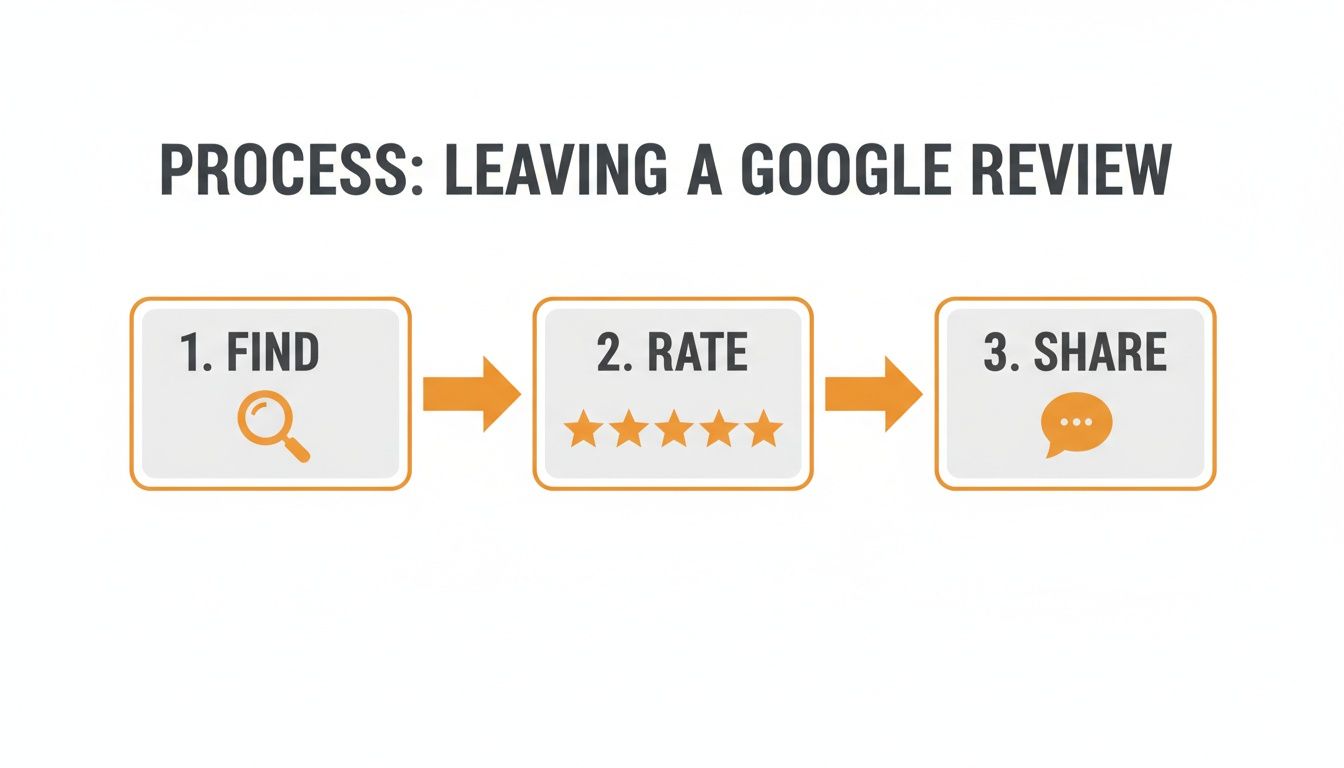
To review a business on Google, a customer finds your business on Search or Maps, clicks “Write a review,” selects a star rating, and adds optional comments and photos. This simple process is critical for your business because positive reviews directly increase conversions like calls, bookings, and messages by building trust and boosting your visibility in local search results. A steady stream of fresh, positive feedback tells Google and potential customers that you are a trusted local authority.
Key Facts About Google Reviews
- 91% of Consumers: The vast majority of potential customers read Google reviews before deciding to engage with a local business.
- 4.5+ Star Rating: Businesses maintaining this rating average see up to 28% higher conversion rates than lower-rated competitors.
- Local SEO Impact: Review quantity, quality, and recency are major factors in Google’s Proximity, Relevance, and Prominence algorithm, which determines your ranking in the local "Map Pack."
- Response Matters: 56% of consumers are more likely to choose a business that responds to its reviews, showing that you are engaged and value customer feedback.
- ROI Connection: A strong review profile directly drives tangible results like phone calls, direction requests, and website clicks from your Google Business Profile (GBP).
How Customers Leave a Google Review: A Step-by-Step Guide
For any local business, from a dental practice in [City] to an auto shop in [Neighborhood], Google reviews are the modern word-of-mouth. They build the social proof needed to turn a searcher into a customer. Understanding the exact steps a customer takes is the first step to building a system that encourages this valuable feedback.
A customer's path to leaving a review is designed by Google to be fast and simple, whether on a computer or a mobile device.
Here are the common steps a customer follows:
- Find the Business: The customer searches for your business name or a relevant keyword (e.g., "HVAC repair near me") on Google Search or Google Maps.
- Locate the Reviews Section: On your Google Business Profile, they click the "Reviews" tab or scroll down to the review summary.
- Click "Write a review": They click the prominent blue button to open the review submission window.
- Rate and Share: The customer selects a star rating (1-5), writes about their experience, and can optionally add photos from their visit.
- Post the Review: They click "Post," and the review typically goes live almost instantly.
Knowing these steps allows you to create clear, simple review requests that guide customers through the process, significantly increasing the likelihood they will complete it.
Editing or Deleting a Review
Customers have full control over their reviews and can edit or delete them at any time. This is important for reputation management. If you resolve a negative experience, a customer can update their review to reflect the positive outcome.
To modify a review, a customer would:
- Open Google Maps and access their profile.
- Navigate to "Your contributions" and select "Reviews."
- Find the specific review and use the three-dot menu to "Edit review" or "Delete review."
Templates & Scripts to Generate More Reviews
Waiting for reviews to trickle in organically is not a strategy. A proactive system is essential for generating the steady flow of feedback needed to compete in local search. The goal is to make the process frictionless for happy customers.
Here are practical assets to help you build and launch your review generation program.
7-Day Review Program Launch Checklist
- Day 1: Claim and fully optimize your Google Business Profile. Ensure your Name, Address, and Phone number (NAP) are 100% accurate.
- Day 2: Create your direct Google review link from your GBP dashboard. This link takes customers directly to the review form.
- Day 3: Draft SMS and email review request templates. Keep them short, personal, and direct.
- Day 4: Train your team on the process: who asks, when to ask (e.g., post-service), and how to use the templates.
- Day 5: Pilot the program with 5-10 recent, happy customers. Gather feedback on the ease of the process.
- Day 6: Refine your templates and workflow based on pilot feedback.
- Day 7: Go live. Integrate review requests into your standard follow-up procedure for every customer.
Review Request Scripts
SMS Template (Med Spa)
Hi [Client Name], it’s [Staff Name] from [Med Spa Name]. We loved seeing you today! If you have 30 seconds, would you mind sharing your experience to help others in [City] find us? [Direct Google Review Link]
Email Template (Dental Practice)
Subject: How was your visit to [Practice Name]?
Hi [Patient Name],
Thank you for trusting us with your dental care. We constantly strive to improve, and your feedback is invaluable.
Would you be willing to take a moment to leave us a review on Google? Your comments help our practice and other patients in the area.
[Link to Google Reviews Page]
We look forward to seeing you at your next appointment.
The [Practice Name] Team
Review Response Templates
Responding to reviews is as important as getting them. It shows prospective customers you are engaged and value feedback.
Positive Review Response (Auto Shop)
Hi [Reviewer Name], thank you for the wonderful feedback! We're thrilled you had a positive experience and that your car is running great. We appreciate you choosing [Your Auto Shop Name] in [City] and look forward to helping you again in the future.
Negative Review Response (HIPAA-Aware for Healthcare)
Hi [Reviewer Name], thank you for taking the time to share your feedback. We are committed to providing an excellent patient experience and are concerned to hear we fell short. To protect patient privacy, we cannot discuss specific details here, but we want to address this. Please contact our Practice Manager, [Name], at [Phone Number] at your convenience.
How to Measure Your Review Strategy's ROI
An effective review strategy delivers measurable business results. Tracking the right Key Performance Indicators (KPIs) proves the Return on Investment (ROI) of your reputation management efforts by linking them to leads and sales.
Set clear targets to measure success and identify areas for improvement.
| Metric | Target Benchmark | Why It Matters |
|---|---|---|
| Review Volume | 3-5 new reviews per location, per month | Fresh reviews signal relevance to Google and build trust with prospects looking for recent feedback. |
| Star Rating | Maintain a 4.2+ average | Many consumers filter out businesses below 4.0 stars, making this a critical threshold for lead generation. |
| Response Time | Under 24 hours | A fast response shows you are attentive and can de-escalate negative issues before they grow. |
| GBP Views/Calls | 10%+ month-over-month growth | This directly connects a strong reputation to increased customer interest and inbound leads. |
| Lead-to-Sale Conversion | Track how many GBP-driven leads become paying customers. | The ultimate measure of ROI, connecting your online reputation to bottom-line revenue. |
Connecting Reviews to Conversions with UTMs
To track ROI precisely, use UTM parameters. A UTM is a code snippet added to a URL to track its performance in tools like Google Analytics.
Add UTM tags to the website link in your Google Business Profile. This allows you to see how many visitors came from your profile and what actions they took on your site, such as submitting a form or booking an appointment.
For example, a senior living community could use a UTM-tagged link like: yourwebsite.com/tour?utm_source=google&utm_medium=organic&utm_campaign=gbp_profile. They can then track exactly how many tour requests originated from a click on their GBP listing, proving a direct line from local search visibility to qualified leads.
Frequently Asked Questions (FAQ)
1. What should I do about a fake or inappropriate review?
If a review violates Google's policies (e.g., spam, hate speech, conflict of interest), you should flag it immediately. In your GBP, find the review, click the three-dot menu, and select "Report review." While you wait for Google's action, post a brief, professional public reply stating that you have no record of the individual and have flagged the review for investigation.
2. Why are some of my customer reviews not showing up?
This is usually due to Google's automated spam filters, which can occasionally remove legitimate reviews. Other reasons include the review violating a policy (e.g., containing a URL), the user's Google account being disabled, or a temporary system glitch. Unfortunately, Google does not notify businesses when a review is removed.
3. Can I offer incentives for Google reviews?
No. Offering discounts, gift cards, or other rewards for reviews is a direct violation of Google's policies. This practice can lead to penalties, including the removal of all your reviews. Focus on earning authentic reviews by providing excellent service and making it easy for customers to share their feedback.
4. How important is my overall star rating?
Your star rating is a critical conversion factor. Many consumers automatically filter out businesses with ratings below 4.0 stars. Data shows that businesses maintaining an average between 4.2 and 4.5 stars receive significantly more calls, clicks, and direction requests from their Google Business Profile.
5. How does Google rank businesses in local search?
Google's local search algorithm is based on three core pillars: Proximity (how close you are to the searcher), Relevance (how well your GBP matches the search query), and Prominence (how well-known and respected your business is). Review quantity, quality, and your response rate are major signals that boost your prominence.
Building a strong online reputation is an ongoing process that directly impacts customer trust and local search visibility. If you need an expert partner to manage your review program and drive measurable growth for your senior living or other local business, we can help. To see how we can turn your customer feedback into a powerful conversion engine with flexible, month-to-month support, book a strategy call with our team.