You cannot directly delete a single bad review from your Facebook Page, but you can either report reviews that violate community standards or disable the entire Recommendations feature. Managing this process effectively is critical because a negative rating can immediately deter potential customers from calling, messaging, or booking a service with your business. A strong, positive review profile builds the trust needed to drive conversions.
Summary: Your Options for Unwanted Facebook Reviews
When a negative review appears, you have three primary options: report it, disable the feature, or respond publicly. You can't simply delete a review you disagree with, as Facebook's system is designed to maintain credibility. Your strategy must work within these constraints to protect your online reputation.
Key Facts
- No Single Deletes: You cannot cherry-pick and delete individual reviews. Your only removal option is reporting a review to Facebook for a violation.
- Reporting is First: If a review contains spam, hate speech, or is clearly fake, reporting it is your first and best course of action. Success is not guaranteed and can take several days or weeks.
- Disabling is a Last Resort: Turning off the Recommendations tab removes all reviews—good and bad. This is an "all-or-nothing" action for severe cases like a coordinated spam attack.
- Responding is Essential: A professional public response is your most powerful tool. It shows potential customers that you are engaged, professional, and committed to customer satisfaction.
Step 1: How to Report a Facebook Review for Removal
Reporting is the only way to remove a single illegitimate review without erasing all your positive feedback. Use this method when a review clearly violates Facebook's Community Standards.
- Log in as an Admin: You must have Admin access to your Facebook Page.
- Navigate to the Review: Go to your Page’s “Reviews” or “Recommendations” tab and find the review in question.
- Open the Report Menu: Click the three dots (…) next to the reviewer's name.
- Select Report: Choose “Find support or report recommendation” from the dropdown menu.
- Choose a Reason: Select the most accurate reason for the report. Common reasons include:
- Spam: Fake profiles, repetitive posts, or links to scams.
- Hate Speech: Attacks based on race, religion, or other protected characteristics.
- Harassment: Bullying or personal attacks on you or your staff.
- Irrelevant: The content has no connection to your business (e.g., a review for a dental practice in [City] that talks about a bad meal at a restaurant).
- Submit and Wait: After submitting, Facebook's moderation team will review the request. This can take anywhere from a few days to several weeks, and there is no guarantee of removal. While you wait, post a professional public response.
Step 2: How to Disable All Facebook Reviews
If reporting fails or you're facing a large-scale attack of fake reviews, disabling the entire feature is your final option. This is a drastic step that removes all social proof, so use it with caution.
- Go to your Facebook Page as an Admin.
- Click Settings in the left-hand menu.
- Select Privacy, then click on Page and Tagging.
- Find the option "Allow others to view and leave reviews on your Page."
- Toggle the switch to the Off position. The change is immediate.
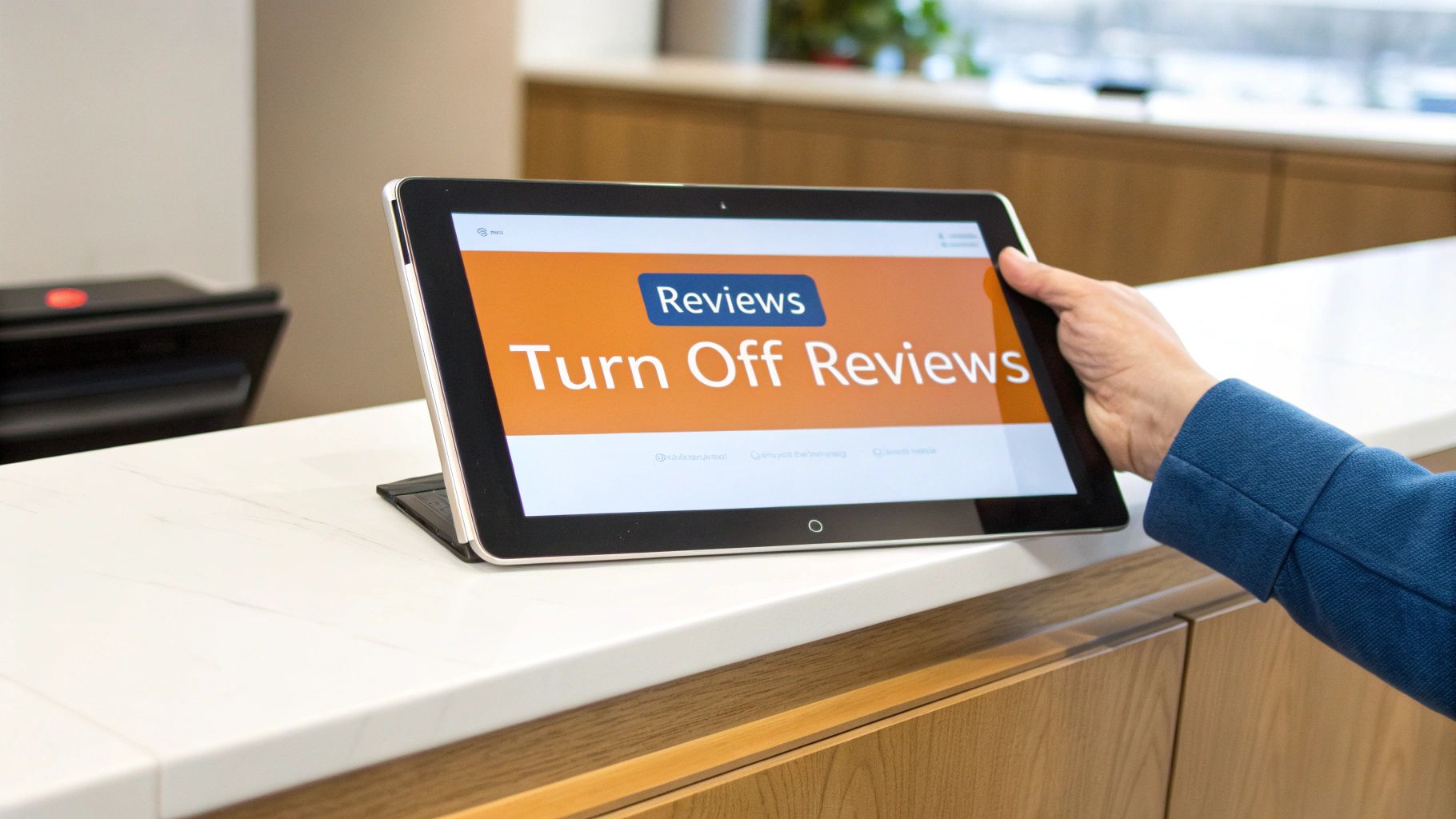
This is a powerful but blunt tool. It stops the immediate damage but erases the trust built by your positive reviews. Often, a better long-term solution is a robust reputation management strategy.
Step 3: Templates for Responding to Reviews You Can't Remove
Your public response is often more important than the original review itself, as it demonstrates your professionalism to every future customer. The goal is to acknowledge the feedback, show empathy, and move the conversation offline.
Review Request Scripts
SMS Script for a Med Spa:
Hi [Client Name], this is [Your Name] from [Spa Name]. We hope you loved your treatment! Would you mind taking 30 seconds to share your experience with our [City] team? Your feedback helps others find us. [Link to Review Site]. Thank you!
Email Script for an Auto Repair Shop:
Subject: How was your service at [Shop Name]?
Hi [Customer Name],
Thanks for trusting us with your vehicle. We hope it’s running smoothly! If you have a moment, we would appreciate it if you could leave a review for our [Neighborhood] shop. Your feedback is incredibly valuable.
[Link to Google Review Page]
Thank you,
The [Shop Name] Team
Response Templates
Template for Responding to a Positive Review:
Hi [Customer Name], thank you so much for the kind words! We’re thrilled you had a great experience with our team at our [City] location. We appreciate your business and look forward to seeing you again soon!
Template for Responding to a Negative Review:
Hi [Customer Name], thank you for bringing this to our attention. We're sorry to hear that your experience with our [service] didn't meet your expectations. We'd appreciate the chance to learn more and make this right. Please call our manager directly at [Phone Number] at your convenience. Thank you, The [Your Business Name] Team.
Step 4: How to Measure Your Reputation Management Efforts
Tracking your efforts connects your reputation activities to real business results like calls and bookings. Focus on these key performance indicators (KPIs) to measure success.
- Average Star Rating: Target 4.5 stars or higher.
- Review Volume: Aim for 5–10 new reviews per location per month.
- Response Time: Respond to 100% of reviews within 24 hours.
- Google Business Profile (GBP) Views/Calls: Monitor your GBP dashboard for increases in views, calls, and direction requests. A strong review profile on Facebook can positively influence overall brand trust and searches.
- Lead-to-Sale Conversion: Track if more positive reviews correlate with a higher conversion rate from inquiries to paying customers.
To directly connect reputation to revenue, use UTM (Urchin Tracking Module) parameters. These are tags you add to links on your social profiles. For example, create a unique link for the "Book Now" button on your Facebook Page. This allows you to see in Google Analytics exactly how many website visitors and conversions originated from that specific button, proving the return on investment of your reputation management efforts.
7-Day Review Program Launch Checklist
- Day 1: Choose Platforms. Focus on Google Business Profile and Facebook first.
- Day 2: Create Review Links. Generate direct links to your review pages.
- Day 3: Write Request Scripts. Draft short, polite SMS and email templates.
- Day 4: Train Your Team. Explain the process and importance of reviews.
- Day 5: Integrate into Workflow. Automate requests after service completion.
- Day 6: Set Up Monitoring. Use a tool or alerts to get notified of new reviews.
- Day 7: Launch. Start sending requests to recent, happy customers.
Step 5: Frequently Asked Questions (FAQs)
1. How long does Facebook take to remove a reported review?
There is no set timeline. The review process can take anywhere from a few days to several weeks. Because of this uncertainty, you should always post a public response immediately after reporting.
2. Does disabling the Reviews tab hurt my Facebook Page?
It won't directly hurt your Page's algorithm visibility, but it removes all social proof. Potential customers may become suspicious if they see a business with no reviews. This action has no effect on your reviews on other platforms like your Google Business Profile.
3. What is the Google Proximity-Relevance-Prominence model?
This is how Google ranks local businesses. Proximity is how close you are to the searcher. Relevance is how well your business matches the search query (e.g., "HVAC repair near me"). Prominence is how well-known your business is, which is heavily influenced by review quantity and quality. More positive reviews boost your prominence, helping you rank higher.
4. What is a quick checklist to optimize my Google Business Profile?
- Verify your business listing.
- Complete every section of your profile (hours, services, photos).
- Use a local phone number.
- Actively solicit and respond to reviews.
- Publish regular Google Posts with updates and offers.
- Add high-quality photos of your business, team, and work.
5. What happens if Facebook denies my request to remove a review?
If Facebook determines the review does not violate their standards, it will remain on your Page. At this point, your only tool is your public response. Shift your focus to a proactive strategy of generating a steady stream of new, positive reviews to push the negative one down and make it less visible. This is a core practice for businesses in every industry, from senior living communities to dental practices.
Managing online reviews is a constant effort, but you don't have to do it alone. A proactive strategy is the best way to build a five-star reputation that drives real growth for your business. If you need help building a system that consistently generates positive feedback and manages your digital presence, our team offers expert support with month-to-month flexibility. Book a strategy call to learn how we can help.