Knowing how to remove a Google Business Profile is crucial for maintaining an accurate online presence that converts searchers into customers. The right approach—usually marking a profile as "permanently closed" instead of deleting it—prevents customer confusion and ensures calls, messages, and bookings are funneled to your active locations. Making the wrong choice can damage your local search ranking and cost you valuable leads.
Key Facts
- Mark as Closed: The best option for a business that has moved or shut down. It keeps your reviews and photos while informing customers of the change.
- Delete Profile: A permanent, irreversible action. Use this only for duplicate listings or profiles created by mistake, as it erases all reviews, photos, and data.
- Owner Access Required: You must be a verified owner or manager of the Google Business Profile (GBP) to make these changes.
- Impacts Local SEO: Inaccurate or duplicate listings confuse Google’s algorithm, which ranks businesses based on proximity, relevance, and prominence.
- Conversions Matter: A clean profile ensures potential customers in your [City] neighborhood find the correct information, leading to more calls and visits.
Your Quick Guide to Removing a Google Business Profile
Deciding whether to mark a profile closed or to delete it entirely is one of the most important housekeeping tasks for any local business. A lingering profile for a closed branch or a duplicate listing for your main location can intercept valuable leads that should be going to your active business. Cleaning up confusing or incorrect listings helps Google’s algorithm favor your correct, active profiles.
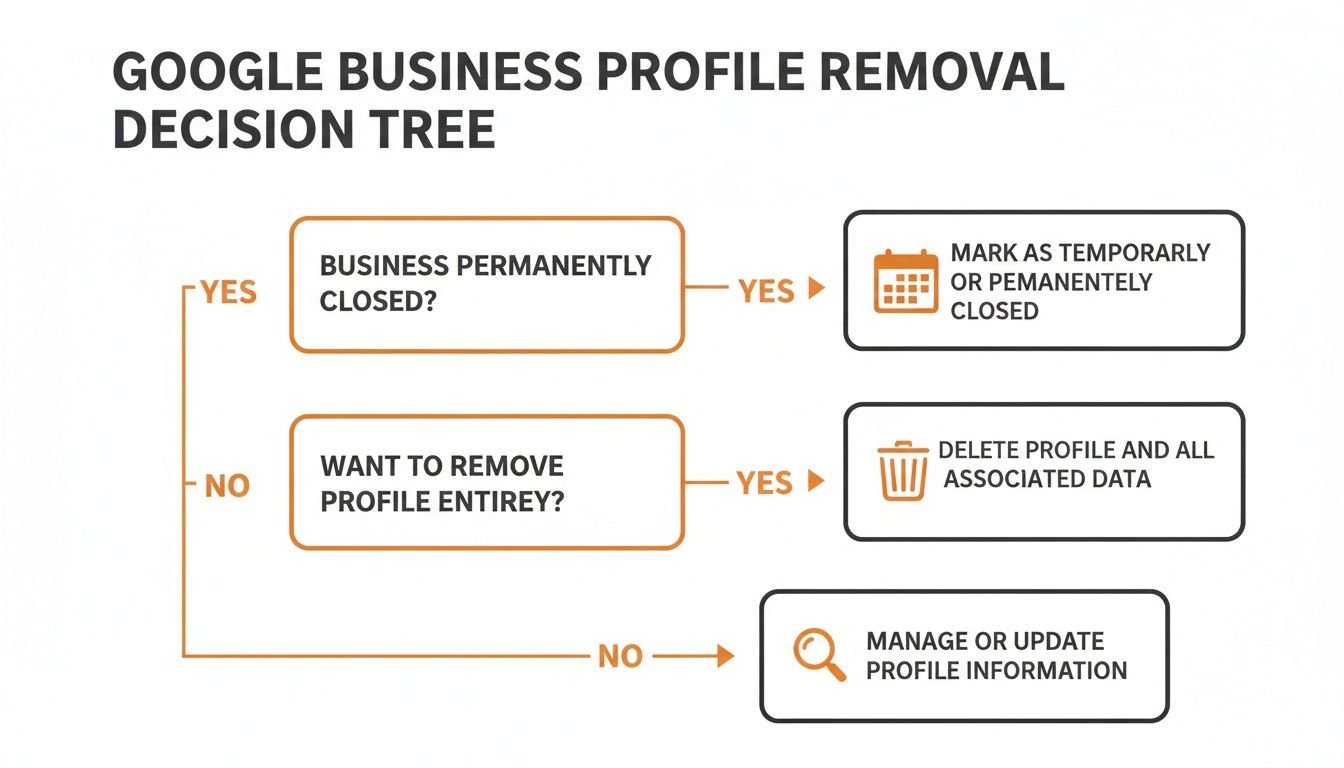
This decision tree helps visualize the two main paths, guiding you toward the right choice for your situation. The "close" option preserves your digital footprint, while the "delete" option is a complete wipe.
Step-by-Step: How to Remove a Google Business Profile
Here are the three ways to handle an outdated or incorrect Google Business Profile (GBP). Choosing the right path is critical. Getting it wrong can mean losing years of customer reviews or causing major confusion for people trying to find you near [City].
Option 1: Mark Your Business as Permanently Closed
This is your go-to option 90% of the time. Use this when a physical location has shut down, you've moved, or another company has acquired the business. Marking a profile as "Permanently Closed" keeps all your reviews and photos while clearly signaling that the doors are shut.
- Sign in to the Google account that manages your Business Profile.
- Go to your dashboard. If you manage multiple locations, select the one you're closing.
- Click the “Edit profile” button.
- Select the “Hours” tab, then click the pencil icon to edit.
- Choose the option for “Permanently closed” and click “Save.”
A "Permanently closed" banner will now appear on your profile in Google Search and Maps.
Option 2: Completely Remove Profile Content and Managers
Think of this as the nuclear option. Use it only for specific situations, like getting rid of a duplicate listing for an auto repair shop with two profiles for the same address. When you take this step, you permanently delete everything: all reviews, photos, posts, and manager access. It is irreversible.
- Go to your Business Profile and click the three-dot menu icon.
- Choose “Business Profile settings.”
- Select “Remove Business Profile,” then click “Remove profile content and managers.”
- Read Google's warning carefully, as this action is permanent.
- Click “Continue” and then “Remove” to finalize the deletion.
As you can see, marking a business "closed" is just a status change. Removing the profile is a final, destructive action.
Option 3: Remove Yourself as a Manager
This is the right choice when the profile is correct, but you no longer need access. Use this if you've sold the business or are handing over marketing duties. The profile stays active, but you're no longer attached to it.
- Access your Business Profile settings via the three-dot menu.
- Select “Managers” (sometimes labeled "People and access").
- Find your name in the user list.
- Click your name and select the option to “Remove [Your Name].”
This only affects your access. The primary owner and other managers will retain control. Note: A primary owner must transfer ownership to someone else before they can be removed. Proper business listings management keeps profile integrity intact for new operators.
Practical Templates and Checklists
Getting an old Google Business Profile removed is just the first step. Now, the real work begins: steering all customer attention toward your correct, active listing and rebuilding your online reputation.
Scripts for Requesting Reviews
After consolidating your profiles, you need to actively guide new customers to the right place.
SMS Script (Dental Practice):
Hi [Patient Name], thank you for visiting [Clinic Name] today. We'd love to hear about your experience. Would you mind leaving a quick review on our Google profile? It helps other patients in [City] find us. Link: [Your Active GBP Review Link]
Email Script (HVAC Service):
Subject: How did we do at [Client Address]?
Hi [Client Name],
Thanks for trusting [Company Name] for your recent service. If you have 30 seconds, could you share your experience on Google? It helps us out and lets your neighbors know who to call.
You can leave your review here: [Your Active GBP Review Link]
We appreciate your time.
Templates for Responding to Reviews
Responding to feedback builds trust with past and future customers.
Positive Review Response:
Hi [Reviewer Name], thank you so much for the 5-star review! We're thrilled you had a great experience with [mention a specific detail, e.g., "our hygienist, Sarah"]. We appreciate you choosing us and look forward to seeing you again.
Negative Review Response (HIPAA-Aware):
Hi [Reviewer Name], thank you for sharing your feedback. We take all patient experiences seriously and want to ensure we address your concerns. Please call our Practice Manager, [Manager Name], at [Phone Number] at your convenience so we can better understand what happened.
7-Day Relaunch Checklist for Your Review Program
- Day 1: Finalize and approve SMS/email review request scripts.
- Day 2: Train your front-line staff (receptionists, technicians) on when and how to ask happy customers for a review.
- Day 3: Designate one person to own review responses with a goal to reply within 24 hours.
- Day 4: Automate your review request process through your CRM or scheduling software to send after a service is completed.
- Day 5: Launch by sending review requests to satisfied customers from the past 30 days.
- Day 6: Monitor incoming reviews and respond to every single one within your 24-hour goal.
- Day 7: Review the week’s results: number of new reviews, average star rating, and any common themes in the feedback.
A structured plan is one of the best things you can do for your local search performance. It’s a core part of effective reputation management.
How to Measure the Impact of Your GBP Cleanup
Tidying up old listings should deliver tangible results. By tracking a few key metrics, you can draw a straight line from your cleanup efforts to business growth, including more calls and bookings.
Setting Up Measurement with UTMs
First, connect actions on your GBP to your website using UTM parameters. These are tracking tags added to links in your profile (e.g., website link, booking button). UTMs allow your analytics to show exactly how many visitors and conversions came directly from your GBP.
Key Performance Indicators (KPIs) to Watch
Here are a few realistic goals to track after cleaning up your profiles:
- Review Volume & Recency: Aim for 5-10 new reviews per location per month.
- Response Time: Respond to 90% of all new reviews within 24 hours.
- Star Rating: Maintain an average star rating of 4.5 or higher.
- GBP Views & Calls: Target a 15% month-over-month increase in calls originating from your profile.
- Lead-to-Sale Conversion: Track the percentage of GBP-driven leads that become customers, aiming for a 5% increase.
Recommended KPIs for Google Business Profile Performance
| Metric | Recommended Target (Monthly) | How to Track It |
|---|---|---|
| GBP Views (Search & Maps) | 20% increase month-over-month | GBP Insights Dashboard |
| Phone Calls from GBP | 15% increase month-over-month | GBP Insights (Call History) |
| Website Clicks (UTM) | 10% increase month-over-month | Google Analytics 4 (Acquisition) |
| Lead-to-Sale Conversion | 5% increase in conversion rate | CRM or internal sales data |
| Average Star Rating | Maintain 4.5+ stars | GBP Dashboard or Reputation Tool |
Watching these metrics is what turns the one-time task of removing a Google Business Profile into a powerful, ongoing optimization strategy. For more on this, check out our guide on local SEO reporting.
A Quick Checklist for Optimizing Your Google Business Profile
Once you've cleaned up any rogue listings, focus all your attention on making your primary Google Business Profile a customer-attraction tool. A fully optimized profile signals to Google that you’re an active, legitimate business, which boosts your rank in local searches like "med spa near me" or "emergency vet in [Neighborhood]."
- Complete Every Section: Fill out your business description, services, attributes (e.g., wheelchair accessible), and hours. More information gives Google more reasons to show your profile.
- Use Specific Categories: Be precise. Choose "Orthodontist" as your primary category, not just "Dentist." Add secondary categories for all other services you offer.
- Upload High-Quality Photos: Add at least 10 photos of your exterior, interior, team, and work. Add a new photo weekly to keep your profile fresh.
- Publish Google Posts: Use this free feature to share updates, promotions, or events. Active posting signals to Google that your business is operational.
- Pre-populate the Q&A Section: Add your own FAQs and answer them yourself to address common questions and highlight key information.
This is a key part of how you can optimize your Google Business Profile for maximum visibility.
Industry data from a Birdeye report shows many businesses fail to even claim their profiles, leaving them vulnerable to inaccuracies. Proactive management is a critical defensive strategy against competitors and AI-driven edits that can mark your profile as "closed" without your knowledge. You can learn more about Google’s evolving business policies from this analysis.
Frequently Asked Questions (FAQ)
Here are concise answers to the most common questions about removing a Google Business Profile.
1. Can I get a deleted Google Business Profile back?
No. Once a profile's content and managers are removed, the action is permanent and irreversible. All reviews, photos, and data are gone for good. This is why marking a profile "Permanently Closed" is usually the better option.
2. What happens to my reviews if I mark my business as closed?
They remain visible. Marking a business as "Permanently Closed" keeps the profile on Google Search and Maps, preserving all your existing reviews, photos, and Q&A content.
3. How long does it take for a listing to disappear after I remove it?
Marking a profile "Permanently Closed" typically updates on Google within a few hours. A complete removal is instant from your dashboard, but it may take several weeks for all traces to disappear from search results.
4. Will removing a duplicate listing hurt my SEO?
No, it will help your SEO. Duplicate listings confuse customers and Google's algorithm, splitting your ranking authority. Removing the duplicate consolidates your ranking signals into a single profile, improving how Google’s proximity-relevance-prominence model views your business.
5. Is it possible to merge two Google Business Profiles?
Yes, but only by contacting Google support. You cannot do it yourself. They will typically merge two listings if they are for the same business at the same location, preserving the profile with more history and reviews.
6. What if someone else claimed my business profile?
You can request ownership. Find the listing on Google, click the "Own this business?" link, and follow the prompts to verify your identity. The current manager has 3 days to respond before Google will grant you access.
7. Why isn't my business showing up on Google after making changes?
It can be due to several factors, including pending verification, a suspension for policy violations, or competition. See the common reasons your business might not be showing up on Google.
Whether you’re managing one vet clinic or a multi-state HVAC franchise, keeping your Google Business Profiles accurate is essential for growth. If you're ready to turn your online presence into a reliable source of leads, our team has the expertise to help with everything from cleanup to review generation. To learn more about our month-to-month support, book a strategy call with us today.