To leave a Google review, you find the business on Google Search or Maps, click on their reviews, and select "Write a review." For busy local operators, understanding this simple process is critical because a steady stream of positive reviews directly boosts your local search ranking and drives conversions like calls, bookings, and new customers. More authentic feedback means more visibility and more business.
Key Facts
- Dominant Platform: Google hosts 57.5% of all online reviews, making it the most important review site for local businesses.
- Consumer Behavior: 98% of consumers read online reviews for local businesses, and 86% focus on reviews from the last three months.
- Local SEO Impact: Reviews are a key factor in Google's "prominence" signal, helping your business rank higher in local search results like the "Local Pack."
- Conversion Power: Displaying customer reviews can increase conversion rates by as much as 270% by building social proof and trust.
- Response Time Matters: Aim to respond to 100% of reviews, positive and negative, within 24 hours to show you value customer feedback.
How Customers Leave a Google Review (Step-by-Step)
Leaving a Google review is a fast, straightforward process for your customers, whether they are on a computer or a mobile phone. Understanding these steps helps you guide them effectively.
The core process is always the same: Find the business, click to rate it, and share the experience.
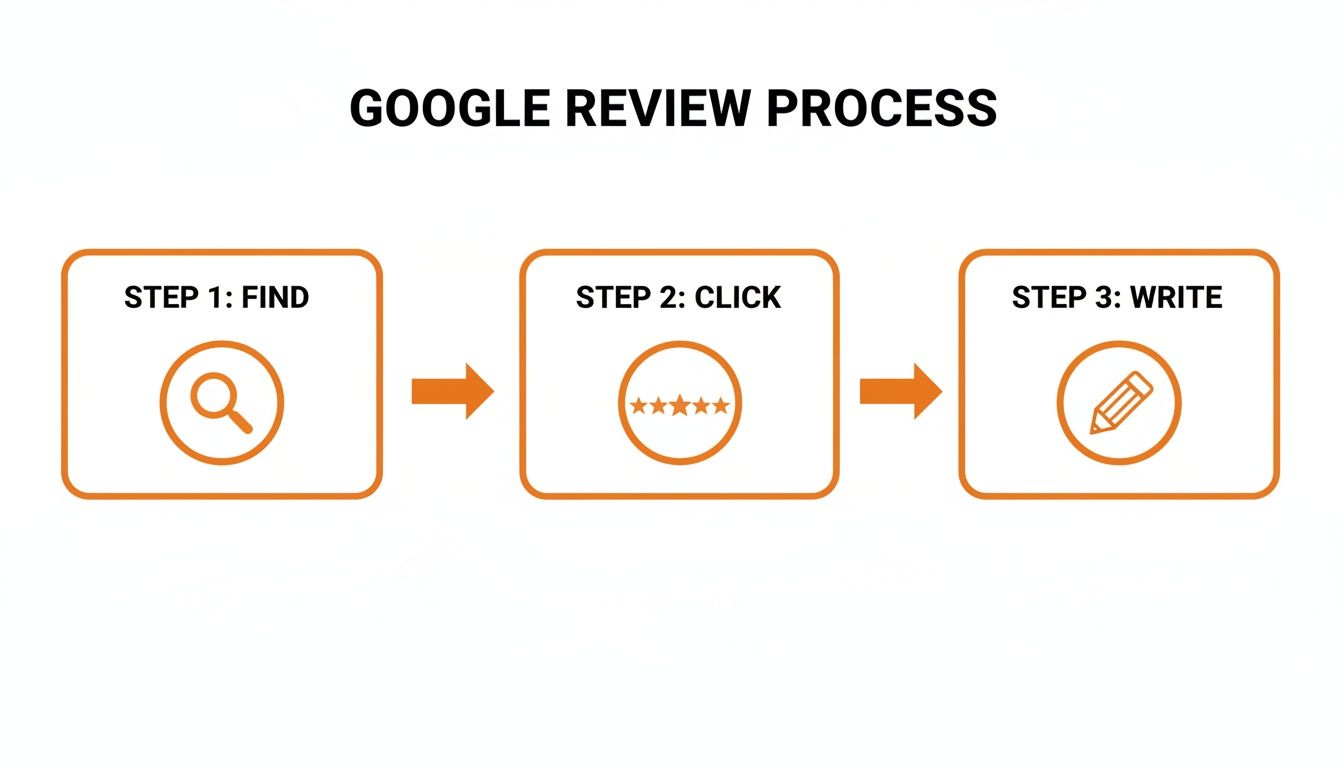
Leaving a Review from a Desktop Browser
- Search: The customer searches for your business name (e.g., "[City] Dental Arts") on Google.
- Find: Your Google Business Profile (GBP) appears on the right side of the search results.
- Click: They scroll down to the review summary and click the “Write a review” button.
- Share: They select a star rating (1-5), write their feedback, and click "Post."
Leaving a Review from a Mobile Device (Google Maps App)
Most reviews are left on the go. The Google Maps app is the most common method.
- Open Maps: The customer opens the app and searches for your business.
- Select Profile: They tap on your business name to open the full profile.
- Navigate to Reviews: They scroll down to the "Reviews" section and tap the five empty stars under "Rate & review."
- Rate and Write: They choose a star rating, write about their experience, and can add photos.
- Post: They hit "Post" to publish the review.
Knowing these simple steps is the foundation for figuring out how to get Google reviews and building a powerful online reputation.
How to Edit or Delete a Google Review
Customers have full control over their past reviews. If a customer's issue is resolved, they can update their feedback.
- Open Google Maps and tap their profile picture.
- Select "Your contributions" and go to the "Reviews" tab.
- Find the specific review and tap the three dots next to it.
- Choose "Edit review" or "Delete review."
Templates & Scripts for Your Review Program
To build a consistent flow of reviews, you need to ask proactively. Using proven templates saves time and ensures your outreach is professional and effective.
Review Request Scripts
Tailor your request to the service and communication channel.
SMS Template (For an Auto Repair Shop)
Short, direct, and perfect for a post-service text.
Hi [Customer Name], this is [Your Name] from [Company Name]. Thanks for trusting us with your car today. We'd appreciate it if you could share your feedback on Google: [Direct Review Link]
Email Template (For a Senior Living Community Tour)
This approach is slightly more formal and personal, ideal for an email after a family tour.
Subject: Following up on your tour at [Community Name]
Hi [Family Member Name],
Thank you for visiting [Community Name] today. We enjoyed showing you our community and answering your questions.
Feedback from families like yours is incredibly helpful for us and others in the [City] area. If you have a moment, would you be willing to share your experience in a Google review?
You can leave your feedback here: [Direct Review Link]
We appreciate your time and consideration.
Sincerely,
The Team at [Community Name]
Review Response Templates
Responding to every review shows you are engaged and value customer feedback. For more strategies, see our guide on asking for a Google review.
Responding to a Positive Review
Hi [Customer Name], thank you for the wonderful 5-star review! We're so glad you had a great experience with [mention a specific detail, e.g., 'your technician, Mark']. Your feedback means a lot to our team. We look forward to serving you again!
Responding to a Negative Review
Hi [Customer Name], thank you for sharing your feedback. We are sorry to hear your experience did not meet your expectations. We take this very seriously and would like to learn more. Please call our manager, [Manager Name], at [Phone Number] at your convenience so we can work to address this.
How to Measure Your Review Strategy's Success

A successful review program requires clear goals and consistent tracking. This ensures your efforts translate into measurable business growth.
7-Day Review Program Launch Checklist
Use this simple plan to get your review generation program running in one week.
| Day | Action Item | Goal |
|---|---|---|
| 1 | Optimize Your Google Business Profile | Ensure all info (hours, services, photos) is accurate and complete. This is the foundation. |
| 2 | Generate Your Direct Review Link | Create the short URL that takes customers directly to your review form. |
| 3 | Draft Request & Response Templates | Create SMS and email scripts for requesting reviews and templates for responding to feedback. |
| 4 | Train Your Team | Show staff when and how to ask for a review at the point of service (e.g., after a successful appointment). |
| 5 | Set Key Performance Indicators (KPIs) | Define your targets for review volume, star rating, and response time. |
| 6 | Launch with a Small Batch | Send your first requests to a handful of recent, happy customers to test the process. |
| 7 | Review, Respond & Refine | Monitor incoming reviews, respond within 24 hours, and adjust your templates based on results. |
Key Metrics to Track (KPIs)
To measure return on investment (ROI), focus on these core metrics for each business location:
- Review Volume: Target 10+ new reviews per location per month.
- Review Recency: Aim for the majority of reviews to be from the last 90 days.
- Star Rating: Maintain an average rating of 4.5 stars or higher.
- Response Time: Respond to 100% of reviews in under 24 hours.
- GBP Performance: Track views, clicks, calls, and direction requests from your Google Business Profile Insights.
- Lead-to-Sale Conversion: Use UTM-tagged links in your GBP to track how many website visits from local search turn into booked appointments or sales.
Connecting these KPIs to revenue demonstrates the direct impact of your reputation management efforts.
Frequently Asked Questions (FAQ)
Here are concise answers to common questions about Google reviews.
1. How do reviews impact local search ranking?
Google's local algorithm uses three main factors: Proximity (how close you are), Relevance (how well you match the search), and Prominence (how well-known your business is). A high volume of recent, positive reviews significantly boosts your Prominence, helping you rank higher when customers search for services "near me" in the [Neighborhood] area.
2. Can I leave an anonymous Google review?
No. All Google reviews are tied to the user's Google account name and profile picture. This is part of Google's policy to encourage authentic, credible feedback from real customers.
3. Do I need a Gmail account to leave a review?
You need a Google account, but it does not have to be a @gmail.com address. You can create a Google account using any existing email address (e.g., from Outlook or Yahoo).
4. Why isn't my Google review showing up?
A review may not appear instantly due to Google's moderation filters, which check for policy violations like spam. In some cases, there may be a temporary delay or a technical glitch. The business profile itself could also be temporarily under review.
5. How do I get more reviews for my business?
The best way is to ask happy customers at the right time. Implement a simple process using SMS or email follow-ups with a direct link to your review page. Make it a standard part of your customer service workflow.
6. Is it okay to offer incentives for reviews?
No. Offering incentives like discounts or gifts in exchange for reviews violates Google's policy. This practice can lead to penalties, including the removal of your reviews. Focus on providing excellent service and making it easy for customers to share their genuine feedback.
Ready to turn customer feedback into your most powerful marketing asset? Consistently generating and managing reviews is key to optimizing your Google Business Profile for maximum visibility. Our team provides dedicated, month-to-month support to build a powerful review strategy that gets you seen by more customers. Book a strategy call to learn more.