To add a review on Google, a customer finds your business on Search or Maps, taps 'Reviews,' and clicks 'Write a review.' For busy operators, mastering this process is critical because a steady flow of positive reviews directly improves your local search ranking and drives conversions like calls, bookings, and tours. This guide provides the step-by-step process, templates, and measurement plan to turn customer feedback into a reliable growth engine.
Key Facts
- Who Can Review: Anyone with a Google account (e.g., Gmail, YouTube) can leave a review.
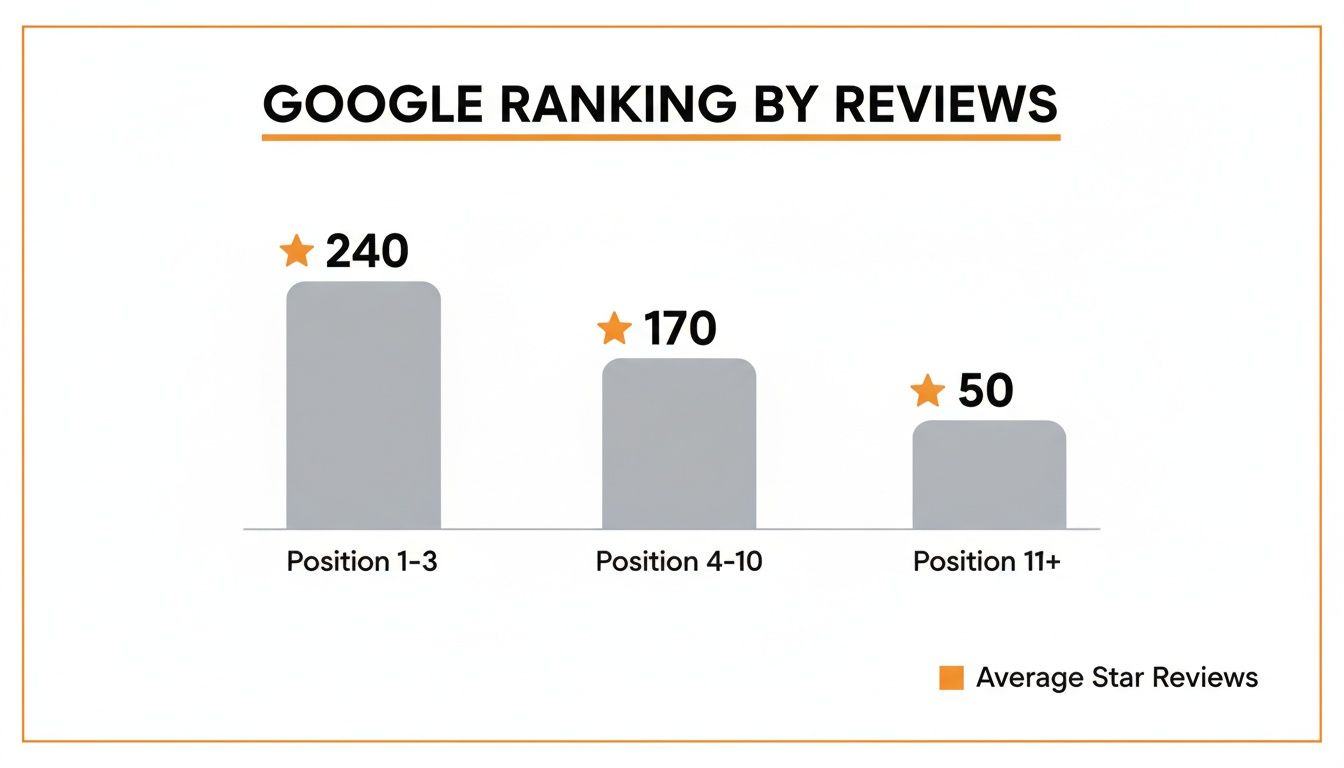
- Ranking Impact: Google's local search algorithm uses proximity, relevance, and prominence to rank businesses. Reviews are the primary driver of prominence.
- Response Time: Responding to all reviews within 24 hours shows engagement and can influence potential customers.
- Anonymity: Google reviews are not anonymous; they are tied to a user's Google account name and profile picture.
- Incentives: Offering rewards for reviews is strictly against Google's policy and can lead to penalties.
- Visibility: 88% of consumers consult Google reviews before choosing a local business.
How Customers Add a Review on Google
Understanding the customer's process is the first step in building a successful review generation program. The easier you make it, the more likely they are to follow through. A customer needs a Google account but can leave a review from any web browser or the Google Maps app.
Adding a Review on a Desktop Browser
This method is quick and takes less than 60 seconds.
- Search for the Business: The customer opens Google and types in your business name plus the city (e.g., "Main Street Dental [City]").
- Find the Business Profile: Your Google Business Profile (GBP) appears on the right side of the search results.
- Navigate to Reviews: They click on the star rating or the link showing the number of reviews.
- Click 'Write a review': A blue button at the top prompts them to share their experience.
- Submit Feedback: A window opens to select a star rating, write comments, and add photos before clicking 'Post.'
Adding a Review via the Google Maps App
Many customers will receive your request on their smartphone, making the Google Maps app the most common method.
- Find the Business: They open the app and search for you (e.g., "Apex Auto Repair near me").
- Open the Profile: Tapping your business name on the map opens your full profile.
- Tap the 'Reviews' Tab: They scroll to the tabs below your business name and tap 'Reviews.'
- Leave the Review: They select a star rating and are taken to a screen to write their comments and upload photos directly from their phone.
A steady stream of reviews is powerful social proof. It signals to Google and potential customers that you are a trusted choice in the [City] area. Learn more about how Google reviews help SEO to see the full impact.
Templates & Scripts for Your Review Program
A disciplined system for asking for and responding to reviews is non-negotiable. Here are practical assets to get you started.
Field-Tested Review Request Scripts
Timing and clear language are crucial. Ask when the customer is happiest and make the process frictionless.
SMS Request (For a Dental Practice)
Send this within an hour of their appointment.
"Hi [Patient Name], it's the team at [Practice Name]. We loved seeing you today! Would you mind taking 30 seconds to share your experience on Google? Your feedback helps others in the [City] area find us. [Direct Review Link]"
Email Request (For a Senior Living Community)
Send this after a positive interaction, like a successful tour.
Subject: How was your tour at [Community Name]?
Hi [Name],
Thanks for visiting [Community Name] today. We hope you found the tour helpful. We strive to create the best experience for families in [Neighborhood], and your feedback is a huge part of that.
If you have a moment, we would greatly appreciate it if you could leave us a Google review.
[Direct Review Link]
Thank you,
The Team at [Community Name]
Professional Review Response Templates
Respond to every review within 24 hours to show you are engaged and value customer feedback.
Positive Review Response Template
Thank the customer by name and mention a specific detail from their review.
"Hi [Reviewer Name], thank you so much for your kind words! We're thrilled to hear you had a great experience with [Mention Specifics, e.g., 'our hygienist Sarah' or 'the new patient process']. We look forward to seeing you again soon at our [City] location!"
Negative Review Response Template
Acknowledge the issue, apologize, and move the conversation offline to resolve it.
"Hi [Reviewer Name], thank you for bringing this to our attention. We are very sorry to hear that your experience did not meet expectations. Providing excellent service is our top priority. Please contact our manager, [Manager's Name], at [Phone Number] or [Email] so we can learn more and work to make this right."
7-Day Launch Checklist
Use this plan to start your review generation program in one week.
- Day 1: Optimize GBP. Complete every section of your Google Business Profile. Add at least 5 new, high-quality photos and enable the messaging feature.
- Day 2: Get Your Direct Review Link. Create a short link that sends customers directly to the "Write a review" pop-up.
- Day 3: Finalize Scripts. Adapt the SMS and email templates to fit your brand’s voice.
- Day 4: Train Your Team. Explain why reviews matter, show them how and when to ask, and clarify the process.
- Day 5: Start Asking. Begin sending review requests to every customer after a positive service experience.
- Day 6: Monitor & Respond. Check your GBP for new reviews and respond to every single one within 24 hours.
- Day 7: Review Progress. Assess how many new reviews you received and use the feedback to refine your process.
How to Measure Your Review Program's ROI
A great review strategy is about turning positive feedback into measurable business growth. Tracking your return on investment (ROI) transforms reputation management from a task into a core growth driver.
Set Clear Performance Targets
Establish a baseline and set specific goals to measure progress.
- Review Volume: Aim for 10–15 new reviews per location, per month.
- Star Rating: Maintain an average rating of 4.5 stars or higher.
- Response Time: Respond to 100% of reviews in under 24 hours.
- Recency: Ensure your newest reviews are no more than 2–3 weeks old.
Connect Reviews to Business Metrics
Use the free Insights tool in your Google Business Profile (GBP) to track key performance indicators (KPIs) like:
- Profile Views: The number of times your profile was seen.
- Calls: The number of calls initiated from your profile.
- Bookings: The number of appointments booked directly.
Look for a correlation between your review generation efforts and an increase in these actions.
Use UTMs to Track Conversions
To directly link reviews to revenue, use UTM parameters. A UTM is a code snippet added to a URL to track its source.
Create a unique link to your website's contact or booking page with UTM tags (e.g., utm_source=google&utm_medium=review-request). Use this link exclusively in your review request messages. Google Analytics will then show you exactly how many people clicked through from a review request and completed a valuable action, proving direct ROI. This is a critical component of effective local SEO reporting.
5 Frequently Asked Questions (FAQs)
1. How do I optimize my Google Business Profile?
A well-optimized GBP is crucial for converting the traffic your reviews generate. Here is a quick checklist:
- Complete All Sections: Fill out every field, including services, attributes, and accessibility information.
- Use High-Quality Photos: Upload at least 10–15 recent photos of your location, team, and work.
- Enable Messaging: Allow customers to contact you directly from your profile.
- Use Google Posts: Regularly share updates, offers, and news.
- Build Out Q&A: Proactively add and answer common questions.
To get started, optimize your Google Business Profile with our detailed guide.
2. Can a customer leave an anonymous review on Google?
No. All Google reviews are tied to a user's Google account, which displays their name and profile picture. While a user could change their name, the review is still linked to a real account, ensuring a level of accountability. For more detail, check out our guide on anonymous Google reviews.
3. What if a Google review is not showing up?
This is often due to Google's spam filters. A review may be blocked if it contains a URL, prohibited content (like profanity), or is off-topic. There can also be a processing delay of a few hours. If a legitimate review doesn't appear after 48 hours, you can ask the customer to try re-submitting it.
4. How can a business remove a fake review?
If a review violates Google's policies (e.g., it's spam or a conflict of interest), you can flag it for removal. Find the review, click the three-dot menu, and select "Report review." The process can take several days, and removal is not guaranteed. Always post a calm, professional response stating you have no record of the individual as a customer.
5. How long does a Google review stay on a profile?
Google reviews are permanent unless the reviewer deletes them or Google removes them for a policy violation. This long shelf life is why a consistent strategy to generate new, positive reviews is essential to keep your profile fresh and relevant.
Managing online reputation is a full-time job. We design and run disciplined review programs for multi-location brands, centralizing requests and replies so you can earn high-quality reviews without adding work to your front line. If you're ready to turn customer feedback into a reliable growth engine, book a strategy call with us today to learn about our month-to-month support.