You cannot disable or turn off reviews on your Google Business Profile. Google’s platform is built on transparency, so the focus for any local business must shift from disabling reviews to actively managing them for higher conversions. A strong, positive review profile directly impacts your ability to generate calls, messages, and bookings from local search.
The reality is that you cannot learn how to disable reviews on Google, but you can implement a strategy to manage your online reputation effectively. This guide provides a step-by-step process for local and multi-location operators to handle negative feedback, generate positive reviews, and optimize their Google Business Profile (GBP) to win more customers.
Key Facts About Google Review Management
- You Cannot Disable Reviews: Google does not offer an option for businesses to turn off the review feature on their Google Business Profile.
- Removal Is Policy-Based: A review can only be removed if it violates a specific Google content policy, not just because it's negative.
- Response Time Matters: Aim to respond to all new reviews, both positive and negative, within 24 hours to signal strong customer service.
- Reviews Impact Local SEO: Your review volume, star rating, and response activity are key factors in Google’s proximity–relevance–prominence model for local search rankings.
- Proactive Generation is Key: The most effective strategy is to consistently generate new, positive reviews to build a strong reputation and minimize the impact of negative ones.
Step-by-Step: How to Handle Unwanted Google Reviews
Since you can't turn reviews off, your power lies in knowing how to manage them. This involves two distinct paths: removing reviews that violate policy and responding professionally to all legitimate feedback.
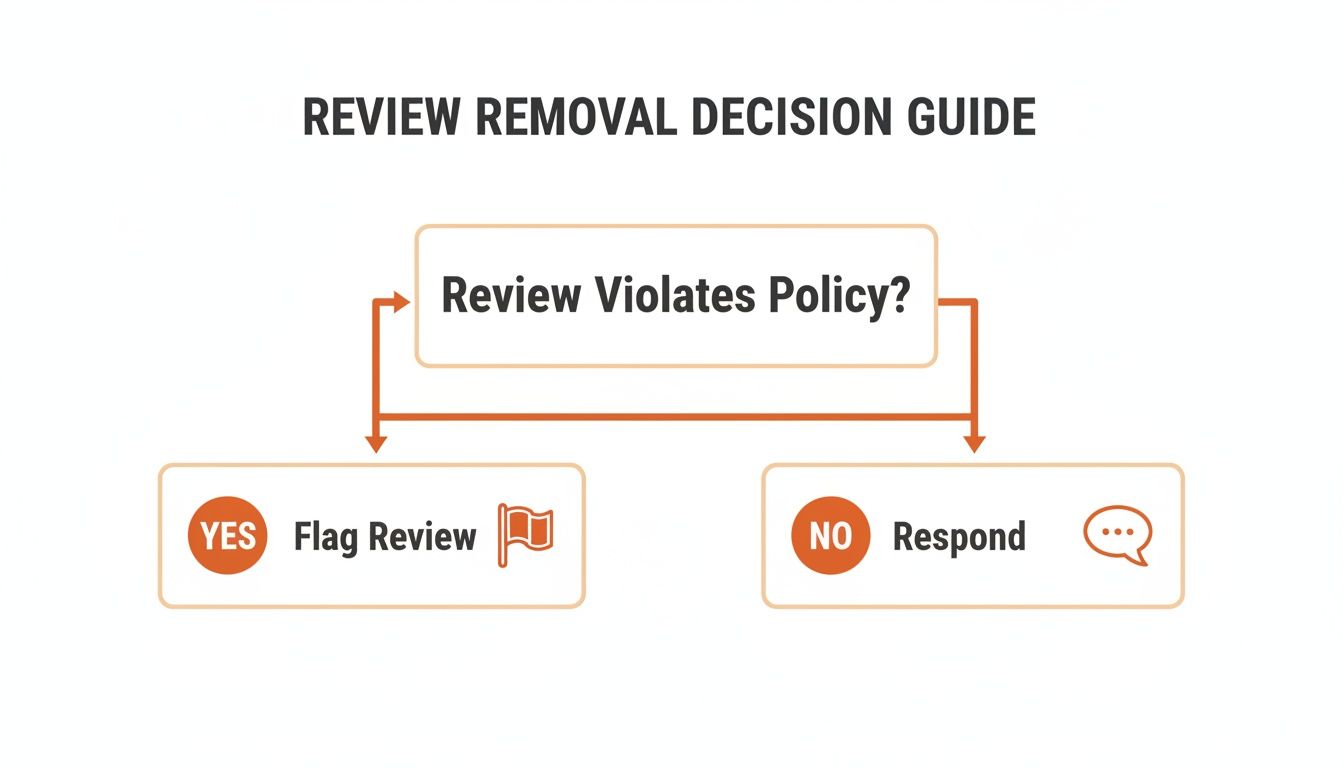
1. Identify if the Review Violates Google's Policies
Your first step is to determine if the review qualifies for removal. Google will not remove a review simply because it's negative. It must break a specific rule.
Common policy violations include:
- Spam & Fake Content: Reviews from bots, fake accounts, or people you have no record of serving.
- Hate Speech & Harassment: Content that includes threats, personal attacks, or discriminatory language.
- Off-Topic Content: Rants about politics, the weather, or anything unrelated to a customer experience at your business.
- Conflict of Interest: Reviews left by current or former employees, or by competitors posing as customers.
If a review complains about service, price, or quality, it is considered legitimate feedback and cannot be removed.
2. Flag the Review for Removal
If you've identified a clear policy violation, flag the review immediately.
From your Google Business Profile (GBP) Dashboard:
- Sign in to your GBP account.
- Navigate to the "Reviews" section.
- Find the specific review, click the three-dot menu, and select "Report review."
- Choose the most relevant policy violation.
From Google Maps:
- Search for your business on Google Maps and click on your reviews.
- Find the review in question, click the three-dot menu, and select "Report review."
After reporting, the process can take anywhere from a few days to over a week. For a more detailed walkthrough, see our guide on how to remove Google reviews from my business.
3. Escalate to Google Support If Necessary
If your initial flag is denied or you don't hear back within two weeks, you can escalate the case to Google's support team. This is your best chance to get a human to review your claim.
To build a strong case, gather the following:
- Your business name, address, and GBP profile link.
- A direct link to the specific review.
- The reviewer's name.
- The exact policy that was violated.
- Evidence (screenshots, CRM records showing the person was not a customer, etc.).
When submitting, be direct and professional. Focus only on the policy violation. For multi-location businesses, centralize this process to one person to ensure consistency. In rare cases of defamation, consult a lawyer before pursuing a legal removal request. Our guide on how to dispute a Google review offers more on this topic.
4. Respond to All Reviews (Especially Negative Ones)
For every review that doesn't violate policy, your only move is to respond. A professional response can resolve a customer issue, demonstrate your commitment to service, and show potential customers how you handle problems. This is a critical part of expert reputation management services.
Templates & Scripts for Review Management
Using templates ensures your team can respond quickly and maintain a consistent brand voice across all locations, from [City] to [Neighborhood].
Review Response Templates
Positive Review Response Template (Dental Practice)
Hi [Patient Name], thank you for the wonderful feedback! We're so glad to hear you had a positive experience during your cleaning with [Hygienist Name]. Our team strives to provide comfortable and professional care, and your review means the world to us. We look forward to seeing you at your next appointment!
Negative Review Response Template (HVAC Company)
Hi [Customer Name], thank you for sharing your feedback. We are sorry to hear that our service did not meet your expectations, and we take your concerns about [mention specific issue, e.g., the installation timeline] seriously. Our service manager, [Manager Name], would like to connect with you to resolve this. Please call us at [Phone Number] at your convenience.
For more examples, see our guide on how to craft the perfect response to bad reviews.
Review Request Scripts
The best defense is a great offense. Proactively asking for reviews is the most effective way to build a positive online reputation.
SMS Request Script (Veterinary Clinic)
Hi [Pet Parent Name], this is [Clinic Name]. Thanks for trusting us with [Pet's Name]'s care today. If you have a moment, would you mind sharing your experience on Google? It helps other pet owners in [City] find us. [Direct Link to GBP Review Page]. Thank you!
Email Request Script (Senior Living Community)
Subject: A quick question about your tour at [Community Name]
Hi [Family Member Name],
Thank you for visiting [Community Name] today. We hope you had an informative and welcoming tour.
We would be grateful if you could share your thoughts about your experience on Google. Your feedback helps other families navigate their senior living search.
Click here to leave a review: [Direct Link to GBP Review Page]
Sincerely,
The Team at [Community Name]
How to Measure Your Review Program's Success
To justify the time and effort, you must connect your reputation management to business growth. This means tracking key performance indicators (KPIs) and setting clear targets.
Recommended Targets:
- Overall Star Rating: 4.3+
- Review Response Time: Under 24 hours
- New Review Volume: 10+ per month per location
- GBP Views/Calls: 15% month-over-month growth
- Lead-to-Sale Conversion: Trackable improvement from GBP-sourced leads
How to Track Performance:
Use UTM tags on the website link in your Google Business Profile. For example, add ?utm_source=google&utm_medium=organic&utm_campaign=gmb to your website URL. This allows you to filter for GBP traffic in Google Analytics and see exactly how many users click through, make a call, or fill out a contact form. This directly connects your efforts to leads and revenue.
7-Day Launch Checklist for Your Review Program
Use this checklist to get a proactive review generation system up and running in one week.
- Day 1: Define Goals & Ownership. Set targets for star rating, response time, and monthly review volume. Assign a single person to be responsible for the program's success.
- Day 2: Create Request Templates. Finalize SMS and email scripts. Generate a direct link to your GBP review form.
- Day 3: Optimize Your Google Business Profile. Ensure every section is complete: services, photos, business hours, Q&A. A complete profile converts better.
- Day 4: Train Your Staff. Role-play with front-line staff (receptionists, technicians, etc.) on how and when to ask for a review.
- Day 5: Set Up Automation. Use your CRM or a simple scheduling tool to automatically send review requests 1-3 hours after a service is completed.
- Day 6: Launch. Begin sending review requests to a small group of recent, happy customers.
- Day 7: Monitor & Respond. Check for new reviews daily and respond to every single one to maintain your sub-24-hour response time goal.

Q&A: Frequently Asked Questions About Google Reviews
1. Can a review be removed if it's unfair or untrue?
No. Google does not mediate disputes of fact. A review will only be removed if it violates a specific content policy, such as containing hate speech, spam, or a conflict of interest. Your best course of action for an unfair review is to post a professional and empathetic public response.
2. How long does Google take to remove a flagged review?
The timeline varies. Clear violations may be removed by automated systems within 24-72 hours. More complex cases that require manual review can take several weeks. If you don't receive a response after 2-3 weeks, escalate your case to Google Business Profile support.
3. What should I do if a former employee leaves a negative review?
This is a direct violation of Google's conflict of interest policy. Flag the review immediately, selecting "Conflict of Interest" as the reason. If it is not removed, escalate to support and state clearly that the reviewer is a former employee. Do not engage with them publicly in the review response.
4. Does responding to reviews help my local SEO ranking?
Yes. Responding to reviews signals to Google that you are an active and engaged business. This improves your "Prominence" in Google's proximity–relevance–prominence algorithm, which can help you rank higher for important local searches like "dentist near me" in your [City].
5. Can I temporarily disable reviews during a crisis?
No, Google does not allow businesses to temporarily pause or disable reviews, even during a service disruption or public relations issue. The best strategy is to continue monitoring and responding to all feedback professionally.
6. Will Google ever turn off reviews for an entire industry?
This is extremely rare. Google has announced it will remove reviews for K-12 schools, but this is a major exception. For nearly all local businesses, including healthcare, home services, and retail, Google reviews are a permanent feature of the platform.
7. How does Google's algorithm rank businesses in local search?
Google uses three main factors: Proximity (how close you are to the searcher), Relevance (how well your business category and services match the search query), and Prominence (how well-known and trusted your business is). Your review count, average star rating, and the recency of your reviews are major components of Prominence.
Since you can't disable Google reviews, the only winning move is to build a system that actively manages them. A disciplined approach to your reputation management can turn customer feedback into your most powerful marketing tool, helping you attract more customers and grow your business. If you need to optimize your Google Business Profile but don't have the time, our team can help.
Ready to take control of your online reputation? Book a strategy call with us to learn about our month-to-month support.