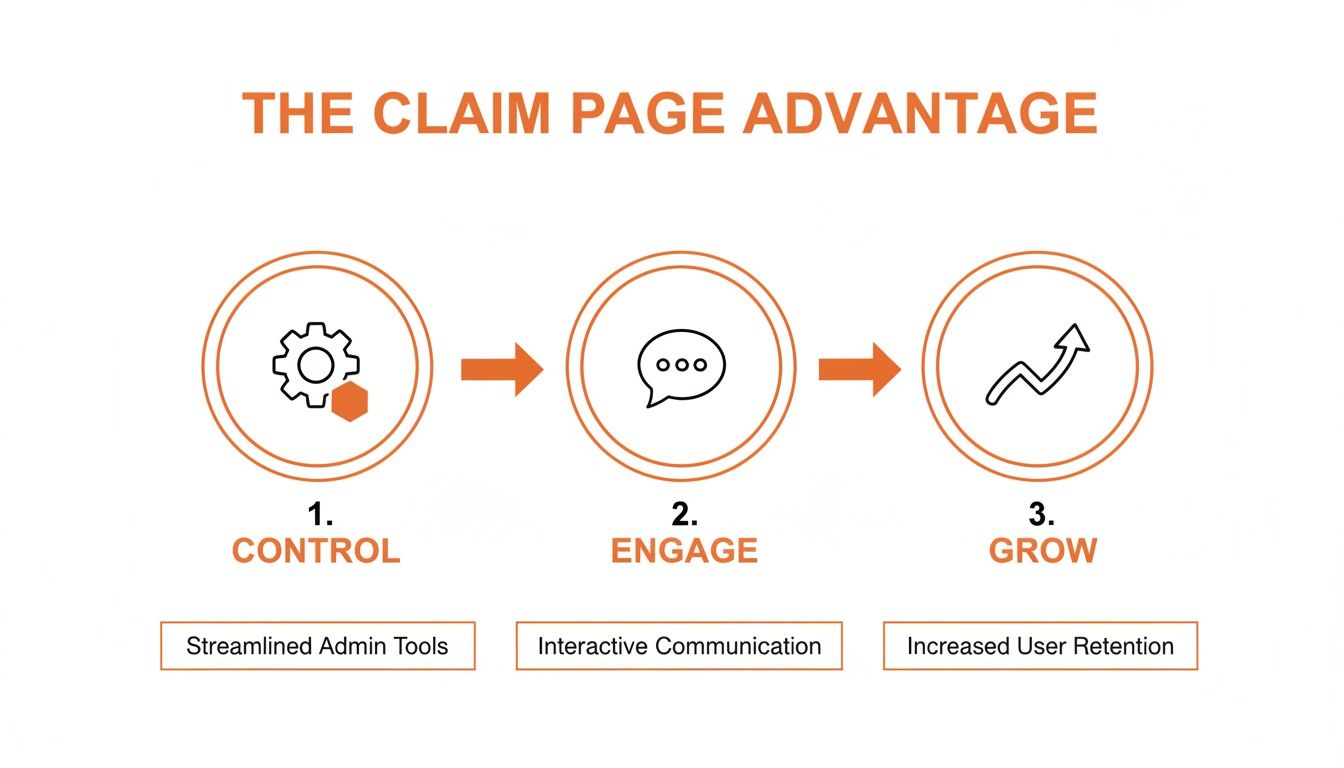
To claim a Facebook Business Page, find the page and click the "Is this your business?" link, then verify ownership via phone, email, or by submitting business documents through Meta Business Suite. Taking control is critical for managing your online reputation and converting local searchers into customers, as it unlocks the ability to respond to messages, run targeted ads, and control your business information—driving real calls, bookings, and sales.
Key Facts About Claiming Your Facebook Page
- Verification Methods: You can claim a page by receiving an automated phone call, an email with a code, or by uploading official business documents (e.g., utility bill, business license).
- Timeframe: Claiming an unmanaged page can take as little as 10 minutes. Resolving an ownership dispute with an unresponsive admin can take 1–4 weeks.
- Cost: The entire process of claiming your Facebook Business Page is 100% free through Meta.
- Why It Matters: Claimed and verified pages see significantly higher engagement, which directly impacts your local search ranking and ability to generate leads.
- Central Hub: The Meta Business Suite is the correct tool for managing your page, especially for multi-location businesses.
A Step-by-Step Guide to Claiming Your Facebook Page
For a busy operator of a med spa, dental practice, or auto shop, an unclaimed Facebook page is more than just a loose end—it's a digital liability. It could be an "unofficial" page created by a customer check-in or a page still controlled by a former employee or marketing agency. Here’s how to efficiently take ownership and turn that page into a revenue-driving asset.
Step 1: Find and Claim an "Unmanaged" Page
An unmanaged page is a placeholder Facebook creates when a user checks into a location that doesn't have an official page. If you've found one for your business, you can claim it directly.
- Navigate to the Page: Search for your business on Facebook and go to the unmanaged page.
- Initiate the Claim: Look for a link under the cover photo that says “Is this your business?” or “Claim this page” and click it.
- Verify Your Ownership: Facebook will provide several verification options to prove you are the rightful owner.
- Phone Call: The fastest option. An automated call will be placed to your business’s publicly listed phone number to provide a verification code.
- Email: A verification code is sent to a business email address (e.g.,
info@[yourbusiness].com). - Business Documents: If other methods fail, you can upload scans of official documents like a utility bill, business license, or tax filing that clearly show your business name and address.
Pro Tip: Before you start, ensure you or a team member can answer the primary business phone line or access the main email inbox. This simple prep can reduce the process to just 10 minutes.
Step 2: Request Access from a Current Admin
If the page is already managed by someone else—like a former marketing manager—the process changes.
- Ask Directly: The simplest path is to contact the current admin and ask them to grant you "Admin" access. They can follow the steps to add a new page admin on Facebook.
- File an Ownership Dispute: If you cannot reach the admin or they are uncooperative, you must initiate a formal ownership dispute with Meta. This requires submitting the same types of official business documents mentioned above to prove you are the legitimate owner. Be prepared for this to take several weeks.
Step 3: Centralize Control in Meta Business Suite
For any serious business, especially multi-location brands, managing a page from a personal profile is inefficient and insecure. Use Meta Business Suite to consolidate your assets.
- Go to your Meta Business Suite and open Business Settings.
- Under Accounts, click on Pages.
- Click the blue “Add” button and choose “Add a Page.”
- Enter the name or URL of your Facebook page. If you are already an admin, it will be added instantly. If not, this action will trigger an access request to the current admin.
Practical Templates & Launch Checklist
You’ve claimed your page. Now, let’s put it to work. Use these scripts and checklists to immediately start improving your reputation management and driving engagement.
Review Request Scripts
SMS Script (For a Dental Practice):
Hi [Patient Name], this is [Staff Name] from [Practice Name] in [City]. We loved seeing you today! Would you mind sharing your experience on our Facebook page? It really helps other local families find us. [Link to Facebook Page Reviews]
Email Script (For a Senior Living Community):
Subject: A moment to share your thoughts on [Community Name]?
Dear [Family Member Name],
Thank you for being a part of our community. We hope your recent visit with [Resident Name] was a warm and positive one.
If you have a moment, we would be so grateful if you could share your experience on our Facebook page. Your feedback helps other families in the [Neighborhood] area as they navigate their own senior living journey.
[Link to Facebook Page Reviews]
Sincerely,
The Team at [Community Name]
Review Response Templates
Positive Review Response:
"[Reviewer Name], thank you for the wonderful 5-star review! We're so glad to hear that [mention specific detail, e.g., 'our technician was prompt and professional']. We appreciate you choosing us and look forward to serving you again."
Negative Review Response:
"[Reviewer Name], thank you for your feedback. We are sorry to hear that your experience did not meet your expectations, as our goal is always to provide exceptional service. We would appreciate the chance to discuss this further. Please call our manager, [Manager Name], at [Phone Number] at your earliest convenience."
7-Day Page Launch Checklist

| Day | Action Item | Goal |
|---|---|---|
| Day 1 | Full Profile Audit: Verify and update all business info: address, hours, phone, services, and website link. | Ensure 100% accuracy so customers in [City] can find and contact you. |
| Day 2 | Upload 10+ High-Quality Photos: Add recent pictures of your location, team, and services in action. | Build trust and visually communicate the quality of your business. |
| Day 3 | Post a "Welcome" Update: Announce that you're actively managing the page and ready to engage. | Re-engage existing followers and signal the page is current and reliable. |
| Day 4 | Send First Review Requests: Use the scripts to send 5–10 review requests to recent, happy customers. | Start building a foundation of fresh, positive social proof. |
| Day 5 | Engage Locally: Like or comment on a post from a non-competing local business in your [Neighborhood]. | Increase local visibility and build community goodwill. |
| Day 6 | Respond to All Existing Reviews: Reply to every single new and old review on your page. | Demonstrate excellent customer service and show you value feedback. |
| Day 7 | Check Initial Insights: Review your first week’s reach and engagement metrics in Meta Business Suite. | Establish a baseline for measuring future content performance and growth. |
How to Measure Your Page's ROI
Claiming your page is only the beginning. Tracking your return on investment (ROI) is how you prove that your efforts are generating actual calls, bookings, and revenue.
Key Metrics and Realistic Targets
Focus on the numbers that translate directly to business growth.
- Review Volume: Aim for 3–5 new reviews per location, per month.
- Average Star Rating: Maintain a 4.5-star rating or higher to stay competitive.
- Response Time: Respond to all reviews and messages within 24 hours.
- Page-Driven Leads: Target a 15% increase in calls, messages, and website clicks from Facebook within 90 days.
- Lead-to-Sale Conversion Rate: Track how many inquiries from Facebook turn into paying customers. A 25% conversion rate is a strong benchmark for many local services.
How Facebook Impacts Your Local SEO
Your Facebook page is a powerful signal for local search engines. Google's local search algorithm is built on three pillars: Proximity (how close you are to the searcher), Relevance (how well your profile matches the search), and Prominence (how well-known and trusted your business is).
A well-managed Facebook page with consistent, positive reviews and active engagement directly boosts your prominence. It tells Google that your business is legitimate, active, and valued by the [City] community. This strengthens the authority of your Google Business Profile (GBP), making you more likely to appear in the top results for valuable searches like "HVAC repair near me."
To maximize this effect, you must also optimize your Google Business Profile.
- Ensure NAP (Name, Address, Phone) is 100% consistent everywhere online.
- Select all relevant business categories.
- Upload at least 20 high-quality photos and videos.
- Proactively use the Google Q&A feature.
- Publish Google Posts at least once a week.
Tracking Conversions with UTM Links
To prove ROI, you must connect Facebook activity to website actions. Use Urchin Tracking Module (UTM) parameters—simple tags added to a URL—to track clicks.
For example, your website link on Facebook could be:https://yourwebsite.com?utm_source=facebook&utm_medium=social&utm_campaign=profile_link
This tag tells Google Analytics that any visitor using this link came from your Facebook profile, allowing you to track how many website visits, form fills, or appointments originated from your page. It provides the hard data you need to justify your efforts.
Frequently Asked Questions (FAQ)
1. How long does it take to claim a Facebook page?
Claiming an unmanaged page via phone or email verification can take as little as 10–15 minutes. If you must file an ownership dispute with an unresponsive admin by submitting documents, the process typically takes 1–4 weeks for Meta's team to review.
2. What if I don’t have the required business documents?
If you lack a utility bill or business license, you can often use other official documents. This includes articles of incorporation, a business bank statement (with sensitive financial data blacked out), or a certificate of business formation. The key is that the business name and address on the document must exactly match the information on the Facebook page.
3. Can I claim a page someone else created for my business?
Yes. If the page is "unmanaged," look for an "Is this your business?" link on the page to start the standard claiming process. If another person is the admin, you must first request access from them. If they do not respond, you will need to file an ownership dispute with Meta to prove you are the rightful owner.
4. Does claiming a page cost money?
No. Claiming a Facebook Business Page is 100% free. The entire official process is managed through Meta Business Suite and does not require payment. Be wary of third-party services that charge a fee for this.
5. What happens if my claim request is denied?
A denial is most often caused by a mismatch between the information on your submitted documents and the information listed on the Facebook page. Carefully review the business name, address, and phone number on both. Even a small difference ("St." vs. "Street") can trigger a rejection. Correct any discrepancies and resubmit your claim.
6. Why is my claimed page not showing up in local searches?
After claiming your page, you need to fully optimize it. Ensure all your business information is complete and accurate, add high-quality photos, and start generating recent positive reviews. Your page's visibility is tied to its activity and reputation, which builds over time.
7. Can I merge duplicate Facebook pages for my business?
Yes, but you must be the admin of both pages first. If you don't control the duplicate, you'll have to claim it. Once you are admin of both, you can use Facebook's merge tool. The page with more followers will be kept, and the other will be absorbed. Warning: All content (posts, photos) from the merged page will be permanently deleted.
Taking control of your digital storefront is the first step. Turning it into a consistent source of leads is the next. If you need a hand managing your online reputation and driving growth, our team offers practical, month-to-month support. Book a strategy call to learn more.