To get your business listed on Apple Maps, your starting point is the free Apple Business Connect platform. This is Apple’s hub for business owners, giving you the power to claim your location, fill in all the crucial details, and control how you show up across the entire Apple ecosystem—we’re talking Maps, Siri, and even CarPlay.
Why You Can’t Afford to Ignore Apple Maps
Listing your business on Apple Maps has moved from a “nice-to-have” to an absolute necessity for local marketing. Just think about it for a second. Every single iPhone, iPad, and Mac ships with Apple Maps built right in. When someone asks Siri for “pizza places near me” or looks for a mechanic through CarPlay, it’s Apple Maps serving up those results.
This seamless integration connects you directly to a massive, engaged, and often high-spending customer base that instinctively trusts the native iOS experience. If you’re not on Apple Maps, you’re simply invisible to millions of potential customers right when they’re searching for your products or services.
Tapping Into a Growing Market
Apple Maps has come a long way since its rocky launch back in 2012. Today, it’s a genuine force in local search. As of 2025, it commands a hefty 23% market share in iOS-dominant countries like the United States, handling billions of search requests every single month. I’ve seen firsthand what a difference it makes—one local coffee shop I worked with saw a 23% increase in foot traffic after we fully optimized their listing.
To truly succeed, you need to understand how all these platforms work together. Learning how to improve local SEO across the board is key to dominating your local market.
The real power of an Apple Maps listing is its ability to connect your business with over a billion active iPhone users who are ready to make a purchase.
A well-managed profile ensures your business doesn’t just appear—it stands out. This is a foundational piece of any smart local SEO for small businesses strategy. By taking control of your presence here, you get to shape your brand’s story and make it incredibly easy for customers to find, call, and visit you.
Getting Your Business on the Map with Apple Business Connect
Everything you need to manage your apple maps add business listing lives inside Apple Business Connect. Think of it as your free central hub for controlling how your business shows up across the entire Apple ecosystem—from Maps and Siri to Wallet and CarPlay.
First things first, you’ll need to head over to the Apple Business Connect portal. You’ll sign in with an Apple ID, so if you don’t have one handy, you’ll need to create one. It’s a quick process and a mandatory step to get access.
Once you’re logged in, the system will ask you to search for your business. This is a key moment. Apple often pre-populates its database with information from other sources, so there’s a good chance a basic placeholder for your business already exists. If you find one, you’ll claim it. If not, no big deal—you’ll just create a new listing from the ground up.
Finding and Claiming Your Spot
Before you can start adding photos or special offers, you need a profile to work with. Pop your business name and address into the search bar to see what comes up.
- Found a match? Great. Select your business from the list and hit “Claim This Place.” This kicks off the process of proving you have the authority to manage it.
- Nothing there? That’s fine too. Just choose the option to add a new business. You’ll start with a clean slate, ready to fill in the basics.
This handy infographic lays out the three main stages you’ll go through to get your profile live on Apple Maps.
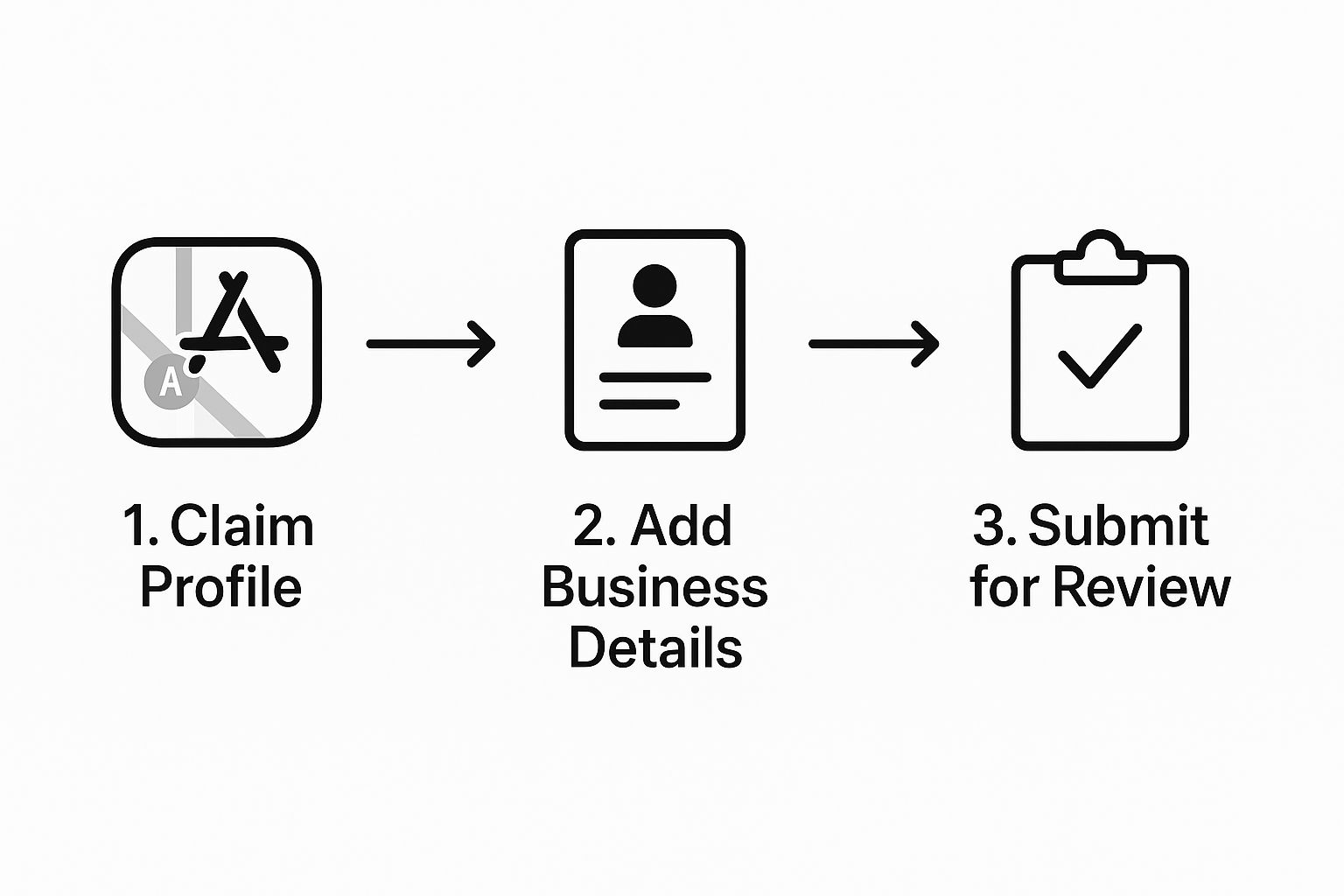
As you can see, it’s a pretty straightforward journey from claiming the profile to fleshing it out with details and sending it off for review.
Nailing the Essential Details
The information you enter here becomes the definitive source for any customer using an iPhone, asking Siri for directions, or navigating with CarPlay. Getting these core details right is absolutely critical to avoid sending potential customers to the wrong place or having them call an old phone number.
During the initial setup, you’ll be asked for the essentials:
- Business Name: Enter your official, legal business name. Avoid stuffing in keywords or location names here.
- Address: This needs to be your exact physical location.
- Phone Number: Use the primary number customers should use to contact you.
- Website: Link directly to your homepage.
- Category: Choose the one that best describes your primary service or product. This is how people will find you when searching for things like “italian restaurant” or “auto repair.”
My Two Cents: Pay very close attention to your Name, Address, and Phone number (NAP). This information should be 100% identical everywhere it appears online. Consistency is a massive trust signal for search algorithms and is the bedrock of solid business listing management. Even a small difference, like “St.” vs. “Street,” can hurt your visibility over time.
Once you’ve filled out these core fields, you’ll submit the information. This triggers Apple’s verification process, which is designed to confirm you’re the legitimate owner and protect your brand’s presence on the platform.
Navigating the Apple Maps Verification Process
Once you’ve submitted your business details, Apple needs to make sure you’re actually connected to the business. This is a good thing—it keeps the platform trustworthy and protects your brand from being claimed by someone else. Think of it as a quick but essential security check.
The verification options you see will depend on your business type and what information Apple can already find publicly.
Common Verification Methods
You’ll usually see one of these methods pop up. It’s smart to be ready for any of them.
- Phone Call: This is pretty common. Apple’s automated system will call the business number you listed and give you a PIN. You just pop that code into your Apple Business Connect dashboard to confirm.
- Email: Similar to the phone call, Apple will send a verification code to a business email address (like [email protected]).
- Document Upload: If your business is brand new or Apple can’t find much about you online, you’ll likely need to upload official documents.
When it comes to documents, clarity is key. Make sure your uploads are crisp, easy to read, and that the business name and address match exactly what you entered. Mismatched information is the number one reason I see verifications get rejected. Good examples include a recent utility bill, a business license, or a tax filing.
Pro Tip: Before you even start, save digital copies of a few key business documents to your computer. Having your business registration or a recent gas bill ready to go makes the process a breeze if you’re asked for them.
What to Do If Verification Fails
First off, don’t panic. It happens more often than you’d think. Apple will usually tell you exactly what went wrong, whether it was a blurry document or a typo in your phone number.
Just take a breath, carefully review the information you submitted, fix any errors, and try again. If you keep hitting a wall, don’t hesitate to reach out to the support team through your Business Connect account. They’re there to help you get across the finish line.
Optimizing Your Listing to Win More Customers
Getting your business verified and on Apple Maps is a great first step, but the real work starts now. To turn that pin on the map into a steady stream of customers, you need to optimize your listing. Think of it as transforming a basic digital signpost into a compelling storefront that people can’t wait to visit.
Let’s start with the visuals, because that’s what people notice first. High-quality photos and videos are non-negotiable. Don’t just stop at a picture of your front door. You need to give people a real feel for your business. Show off your most popular dishes, your team at work, or the unique vibe of your location. If you run a local coffee shop, a beautiful shot of your best latte art or a quick video of the bustling morning rush can make all the difference.
Spotlight Your Best Offers With Showcases
Apple Business Connect gives you a fantastic tool called Showcases. This is your chance to post timely updates directly on your listing. You can highlight special promotions, announce upcoming events, or feature a new product you’re excited about.
For example, a boutique could create a Showcase for a “New Summer Collection” with an eye-catching photo and a link to shop. These act like targeted mini-ads that grab the attention of people already looking for what you offer, giving them a clear reason to pick you over the competition down the street.
The Critical Role of Consistent Information
Now for a crucial, but often overlooked, detail: your Name, Address, and Phone number (NAP) must be identical everywhere it appears online. Consistency is a huge signal of trustworthiness for search algorithms. Even a small difference, like listing “St.” in one place and “Street” in another, can create confusion and weaken your online authority.
Think of your NAP as your business’s digital fingerprint. When it’s consistent across the web, Apple sees your information as reliable and is more likely to feature your business in search results.
The link between a local search and a physical visit is incredibly powerful. An amazing 76% of people who search for a local business on their phone end up visiting a store within 24 hours. This stat alone shows why every single detail on your listing needs to be perfect. You can learn more about the impact of local search to see just how important this is.
Finally, never forget the power of your customers. Actively encourage people to leave reviews and share their own photos. This kind of social proof is invaluable. It builds credibility and keeps your listing fresh with authentic content. These efforts are a cornerstone of any effective local business listing optimization strategy that truly moves the needle.
Common Listing Mistakes and How to Avoid Them
Getting your business profile live is a fantastic first step, but a few simple missteps can quietly tank your visibility. I’ve seen it happen time and again. Learning from these common errors is the quickest way to get your apple maps add business listing working for you from the get-go.
A huge one is picking the wrong business category. Think of categories as the main way Apple connects you to what people are searching for. If you run a high-end steakhouse but just list yourself as “Restaurant,” you’re missing out on customers specifically looking for a great steak. Get as specific as you can.
Another classic mistake is uploading low-quality photos. Your images are your digital storefront. Blurry, dark, or generic stock photos make your business look amateur, which can send potential customers running to a competitor with a more polished and inviting gallery.
The Big One: Inconsistent and Outdated Information
Now for what I consider the most damaging mistake of all: inconsistent Name, Address, and Phone number (NAP) data. If your address is “123 Main St.” on Apple Maps but “123 Main Street” on your website and “123 Main” on Facebook, those little differences matter. They create confusion and seriously hurt your credibility with search algorithms.
Your business information has to be a perfect match everywhere it appears online. Tiny inconsistencies confuse both search engines and actual customers, making it much harder for people to find and trust you.
Finally, just forgetting to update your hours is a surprisingly costly error. Nothing frustrates a customer more than showing up to a locked door because you forgot to post your holiday hours. That kind of bad experience leads directly to negative reviews.
Here’s how you sidestep these traps:
- Drill down on your categories. Be hyper-specific to attract the right kind of customers.
- Invest in great photos. Upload high-resolution images that truly show off what makes your business special.
- Do a NAP audit. Check your business info across every online directory and make sure it’s 100% consistent.
- Keep your hours fresh. Always update them for holidays, special events, or any changes in your schedule.
Got Questions About Your Apple Maps Listing? We’ve Got Answers.
Getting started with a new platform always brings up a few questions. Let’s tackle some of the most common ones we hear from business owners when they first add their business to Apple Maps.
How Long Does Verification Take?
Once you’ve sent your details over to Apple, the review process usually wraps up within a week, though sometimes it’s as quick as a few days. If you want to keep things moving, make sure the documents you upload are crystal clear and that the info you provide perfectly matches public records. Any discrepancies are the number one cause of delays.
What if I Have More Than One Location?
No problem at all. Apple Business Connect is built for businesses of all sizes, and that includes franchises and chains. You can use their bulk upload feature to add all your storefronts at once, which saves a ton of time compared to entering them one by one.
“I Found a Listing for My Business, But I Didn’t Create It. What Do I Do?”
Don’t panic—this is actually pretty common. Apple often creates placeholder listings based on data it pulls from other sources. All you need to do is search for your business, select the existing profile, and go through the standard process to claim it. This will give you full control to update the hours, phone number, and everything else.
Ready to take control of your online presence and turn customer feedback into your most powerful marketing tool? Let Reviews To The Top help you manage your listings, generate reviews, and climb to the top of local search results. Contact us to get started.